

Vault
Keep private notes and files encrypted on your devices.
The vault encrypts notes and files on your device before they sync. The server, its administrator and its backups hold only their encrypted contents. Ordinary notes outside the vault remain readable by someone with server or backup access.
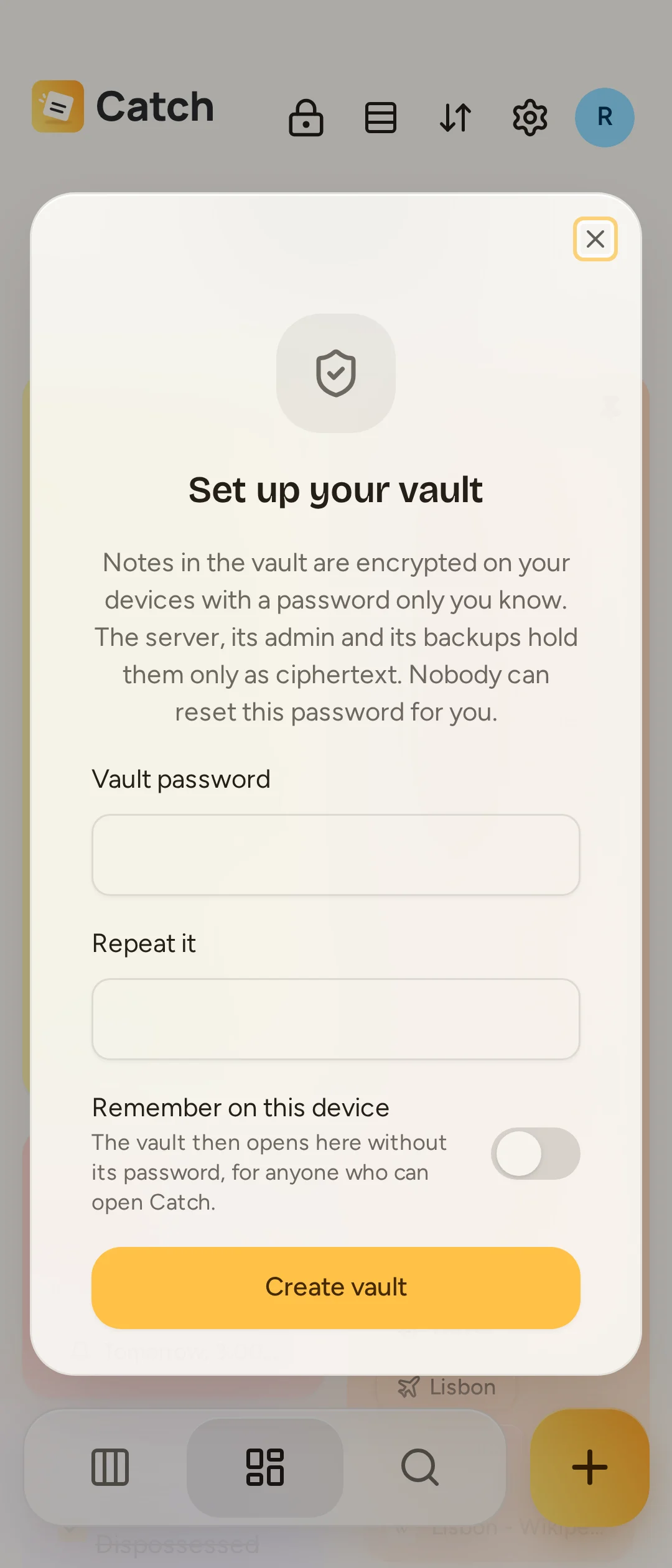
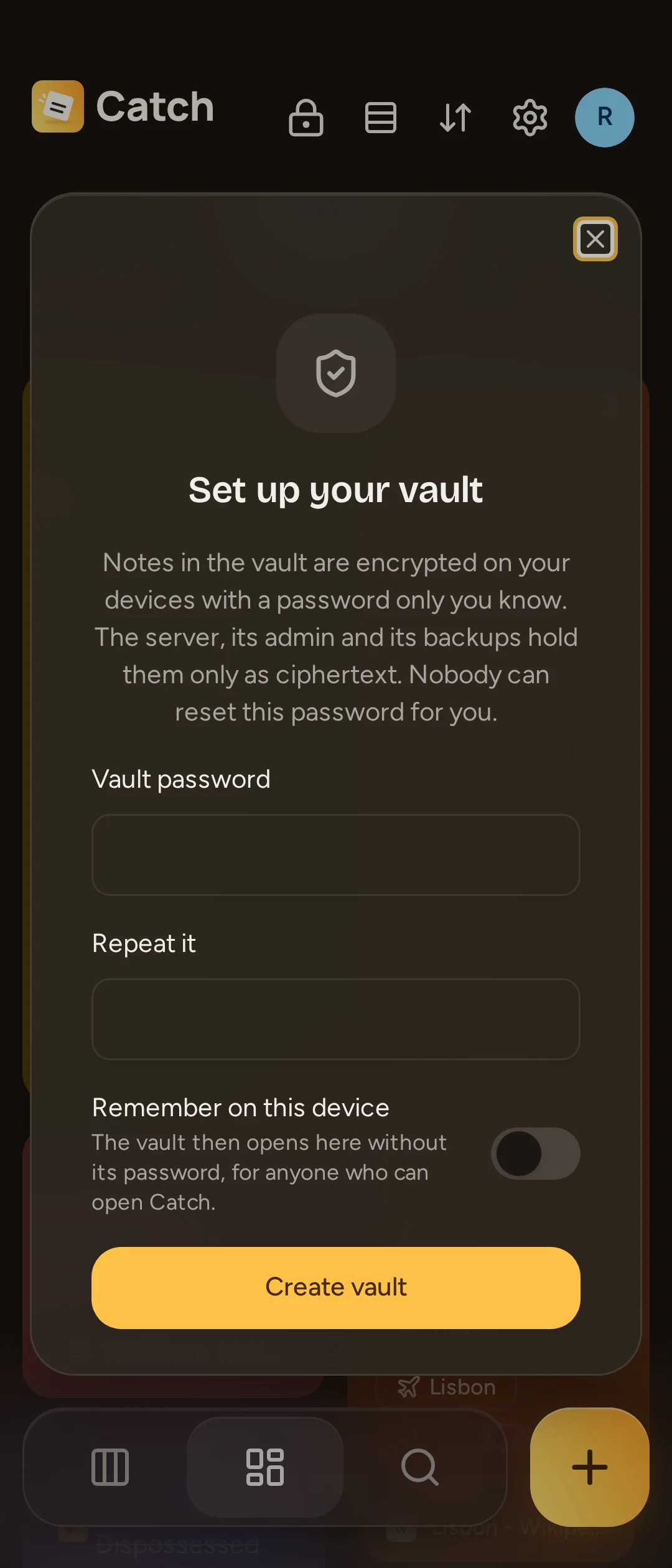
Set up your vault
- Connect to your server over HTTPS and sign in. Each account has its own vault.
- Tap the header's lock button, Open the vault, or open Settings > Vault and choose Set up.
- Choose a Vault password of at least eight characters and repeat it. This password is separate from your account password; use a different one.
- Decide whether to Remember on this device, then select Create vault.
- Save the recovery code somewhere safe outside the vault, then select I have saved it. Catch shows it only once.
Keep the password or recovery code
Nobody can reset your vault password for you, including an administrator. If you lose both the password and recovery code, your vault notes cannot be recovered. Resetting your account password does not unlock the vault.
Write and organize private notes
Enter the vault with Open the vault and unlock it when asked. Gallery, Deck, Search, Reminders, Archive and Trash then show only vault notes. Any new note you create there belongs to the vault. Use Leave the vault to return to ordinary notes.
You can edit, color, tag, pin and organize vault notes with the usual controls. Search runs on your device while the vault is unlocked. Vault notes sync as encrypted data and work offline once this device has synced them. Setting up, changing or recovering the password, and deleting the vault need a server connection.
Attachments, including their filenames, are encrypted too. The device makes encrypted thumbnails; a video downloads in full before playing. Prepare files you need with Keep offline.
Reminders work, but notifications say Vault note instead of showing its text. Opening one enters the vault and asks for the password if locked. The server still knows reminder times, note sizes and change times, and attachment sizes.
The vault currently has these limits:
- No link previews or Catch sharing links.
- No moving ordinary notes into the vault. Their text could remain in older server backups even after a move.
- No importing into the vault or receiving shares from another app into it. Those notes go to ordinary Gallery.
- Changes from different devices replace the whole vault note when they sync. Let a note sync before editing it elsewhere; there is no conflict merge or revision history.
Remember or lock this device
Remember on this device lets the vault open here without asking for its password, including after a restart. Anyone who can open Catch on this device can then open the vault. Enable it only on a device you trust.
Without remembering, the vault locks when you leave it, reload Catch or spend five minutes in the background. In Settings > Vault, Lock now locks it and forgets its remembered key. Signing out also forgets it.
Settings > Vault > Show vault button hides or shows the header shortcut on this device, across its accounts. It does not delete or disable the vault; you can still open it from Settings or a reminder. The leave button stays visible while you are inside.
Change or recover the password
In Settings > Vault, choose Change beside Vault password. Enter the current vault password and repeat the new one. The recovery code stays the same, and devices that remember the vault keep it open.
If you have forgotten the password, select Use the recovery code on the unlock screen. Enter the saved code and choose a new vault password. This also keeps the same recovery code.
Delete the vault
In Settings > Vault, choose Delete beside Delete vault, then confirm Delete vault. This removes every vault note and its files from the server and your synced devices. It does not need the vault password and cannot be undone. Older server backups remain separate encrypted copies; deleting the live vault does not erase them.