
Tags and colors
Create nested tags and choose primary and secondary tags.
Tags organize your notes in a tree, such as Work > Projects > Kitchen. Each tag belongs to your account. A note can have one primary tag and several secondary tags.
Create or change a tag
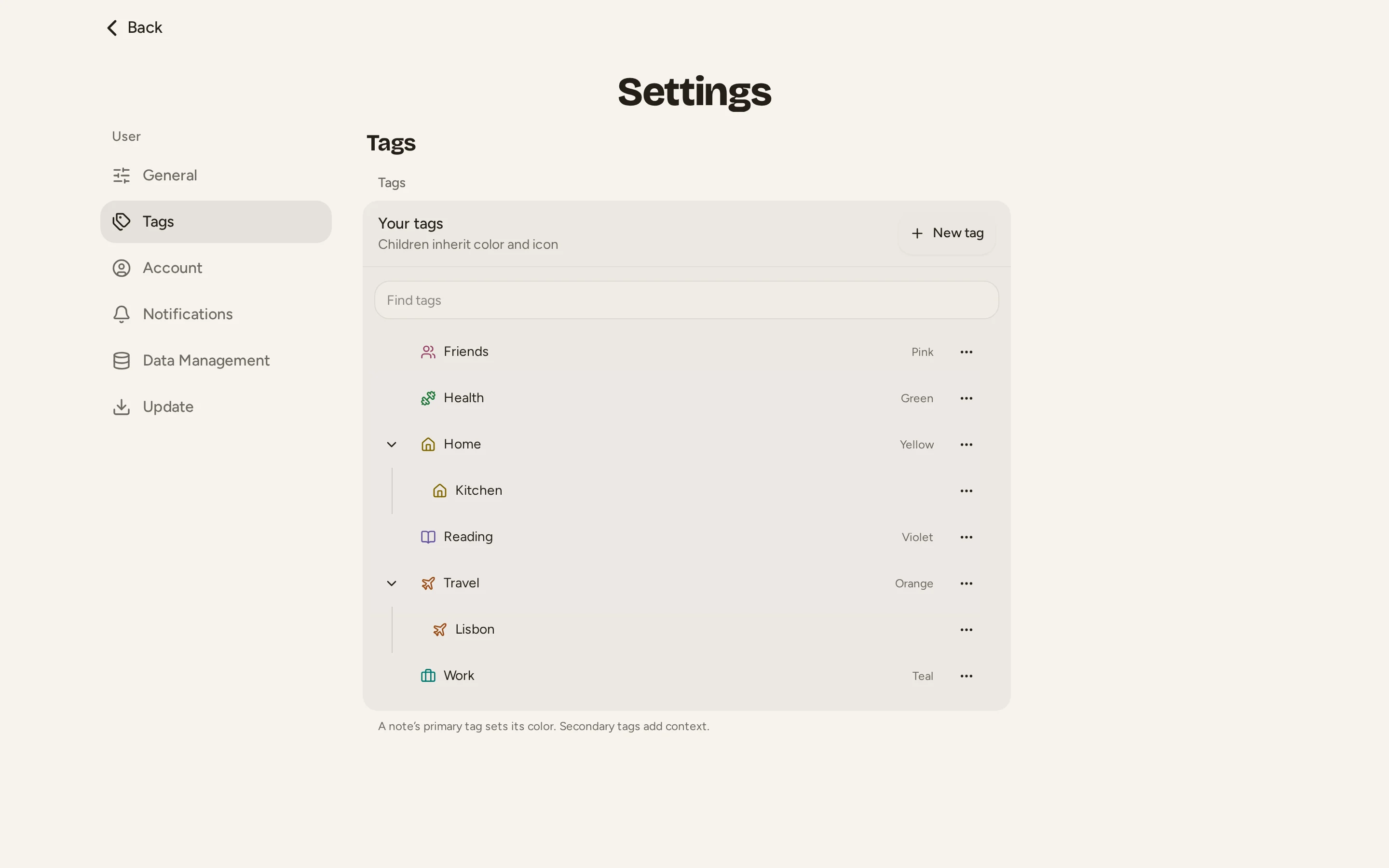
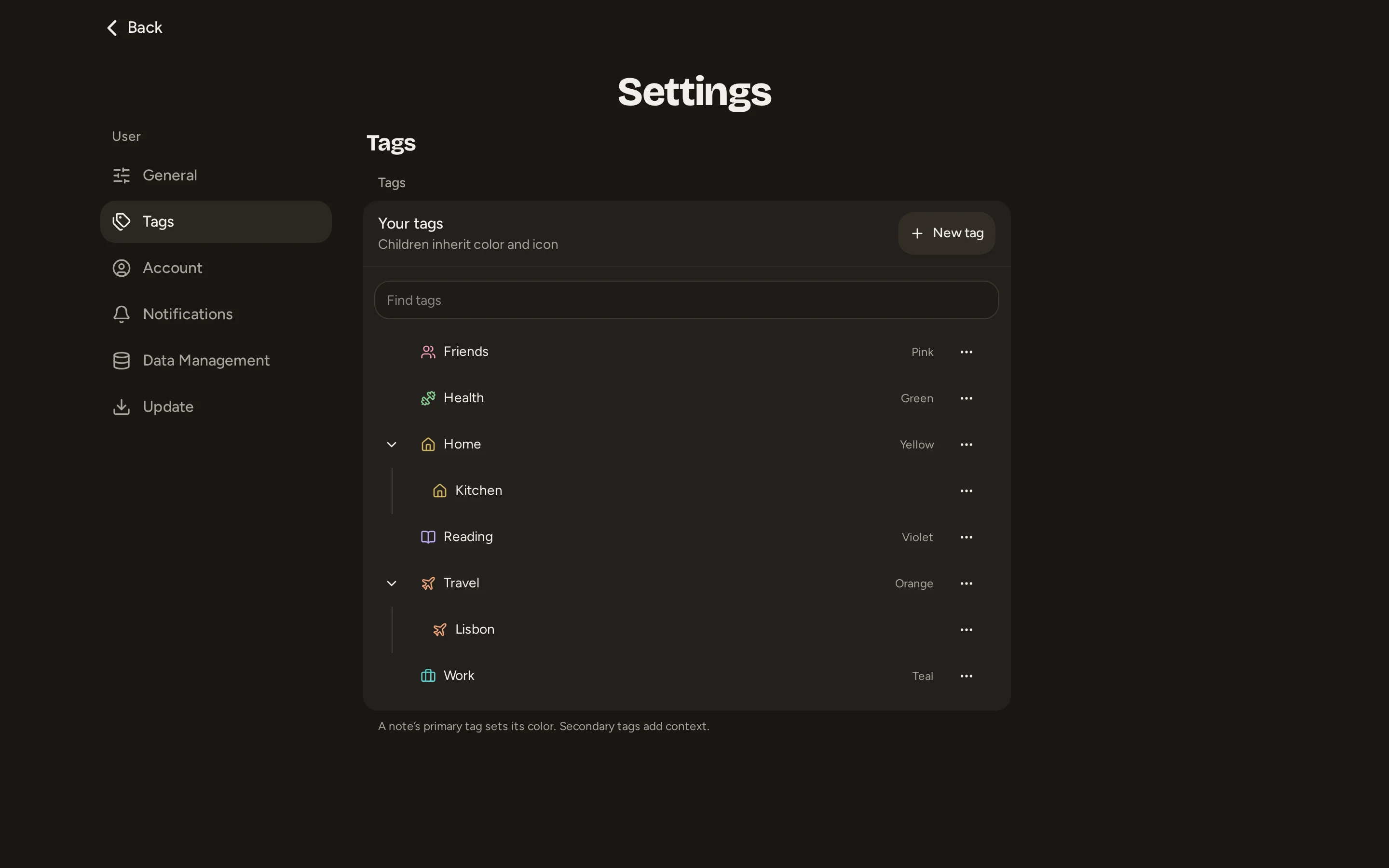
Open Settings > Tags and use New tag. Give it a name and choose a parent, or Top level for a root tag. Root tags can have a color and icon; children inherit both from their root.
You can also create tags from the note pickers. In Settings, a tag's edit and management controls let you rename it, move it under another parent, add a child or delete it.
Deleting a tag deletes its children and removes those assignments from notes. Your notes remain. Removing a primary tag leaves the note without that tag's color.
Choose a primary tag
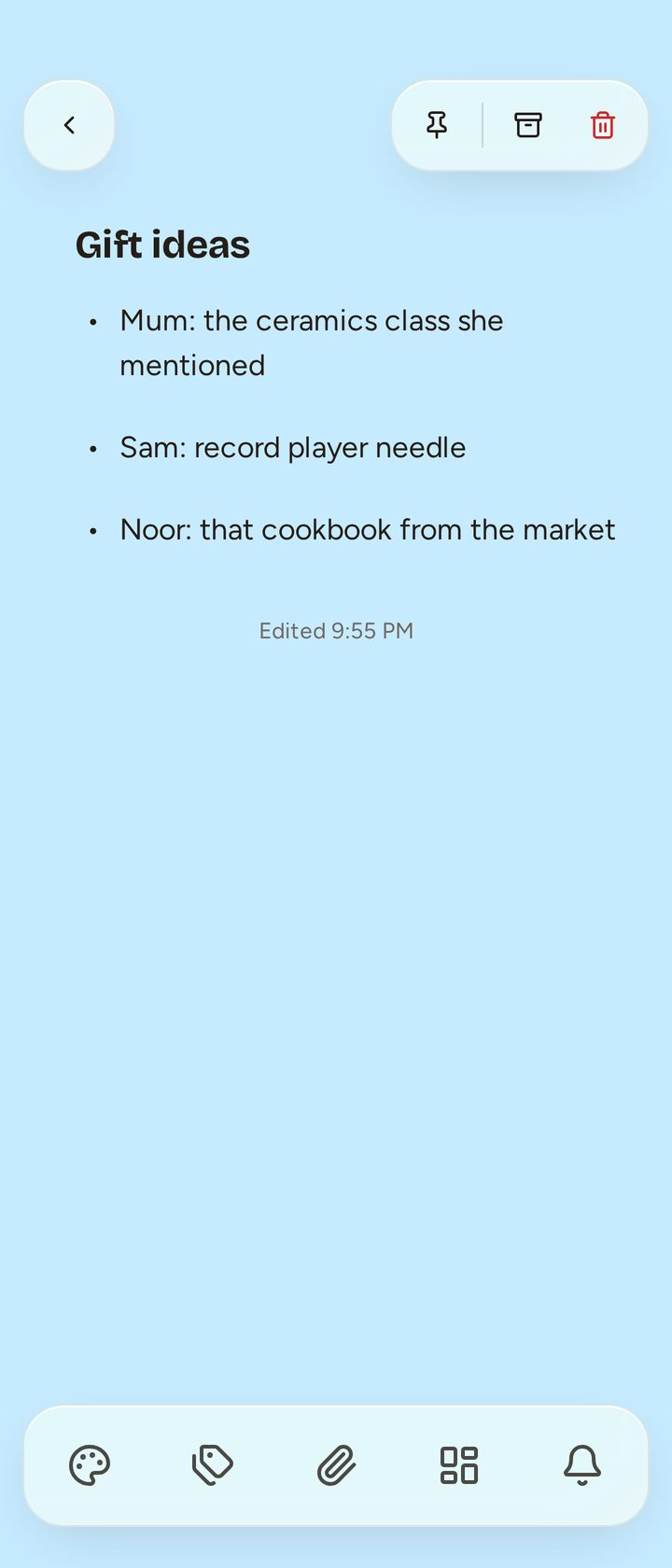
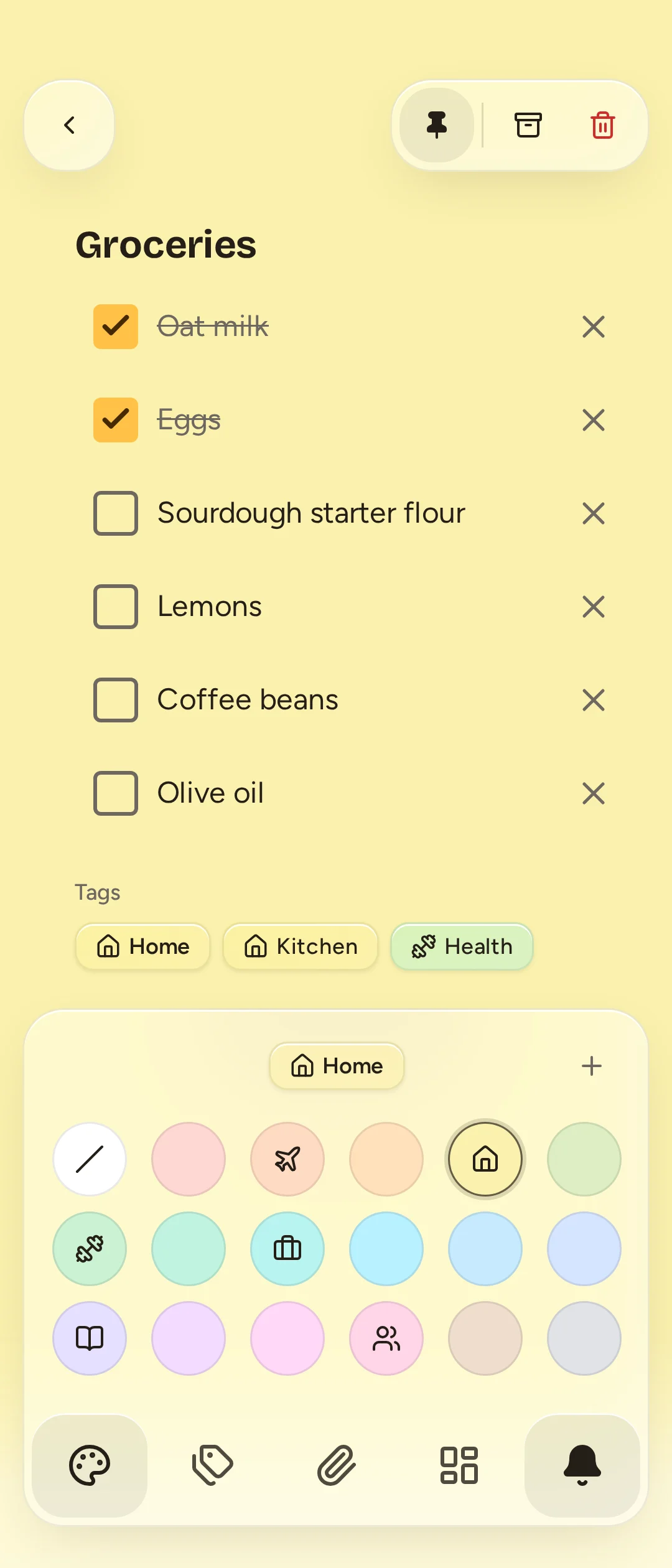
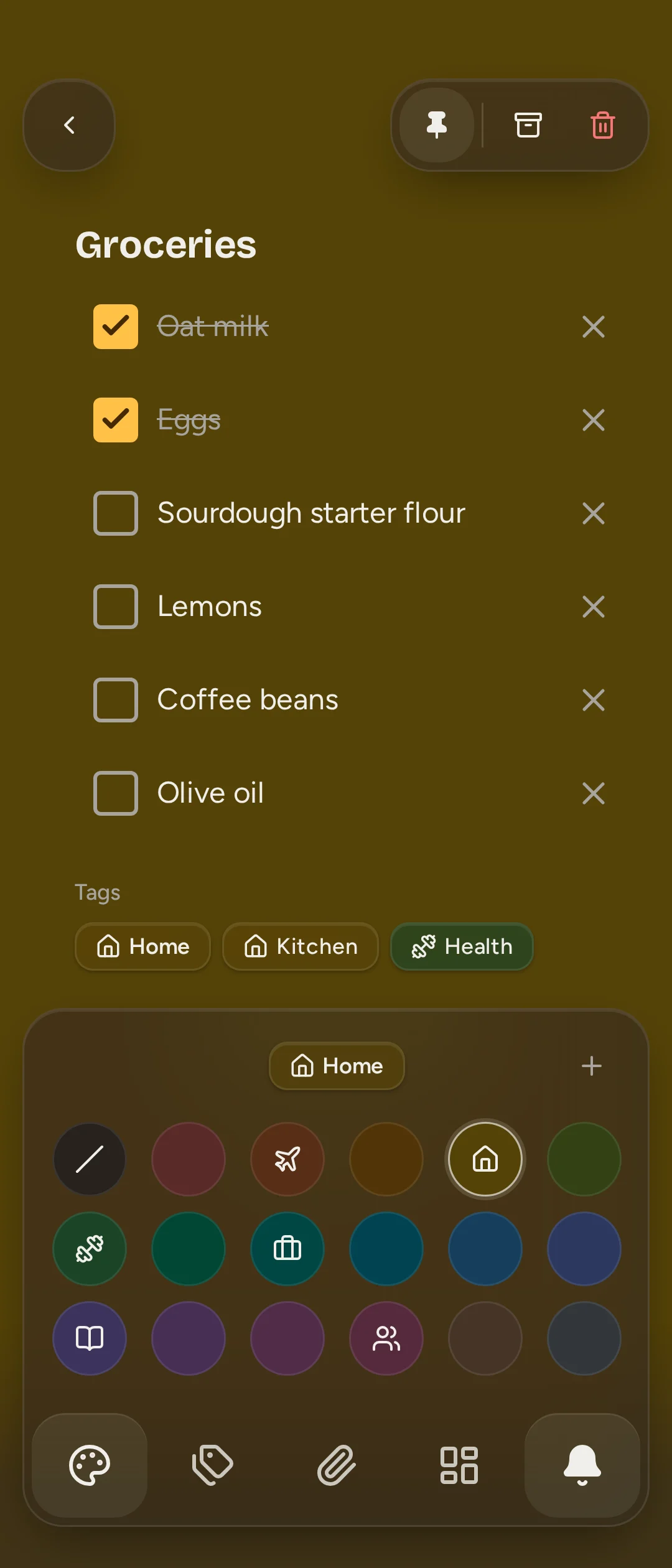
Open a note and choose Background color. The picker includes colors linked to root tags and an entry for tags without colors. Choose a tag, then choose a child if needed. A selection applies immediately; closing the picker after selecting a parent keeps that parent.
The primary tag sets the note's background through its root. Changing the root's color recolors notes with that primary, including descendants. A color can be linked to only one root in your account.
Linking a color also organizes existing notes
When you link a color to a root tag, existing notes with that plain color gain the root as their primary tag, including archived and trashed notes. Notes that already have a primary tag keep it. Check which notes use a color before linking it.
Choose an unlinked color, or No color, to remove the primary tag and use a plain background. Secondary tags stay assigned.
Add secondary tags
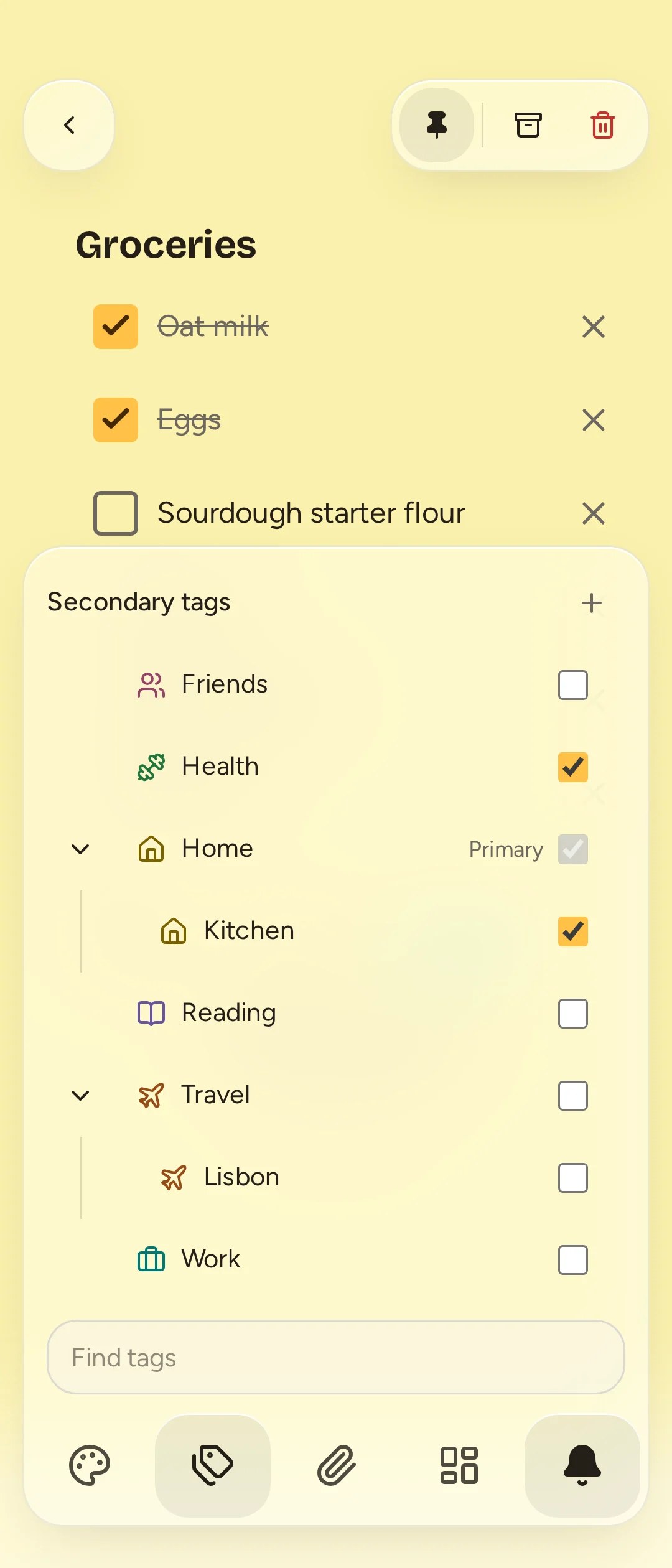
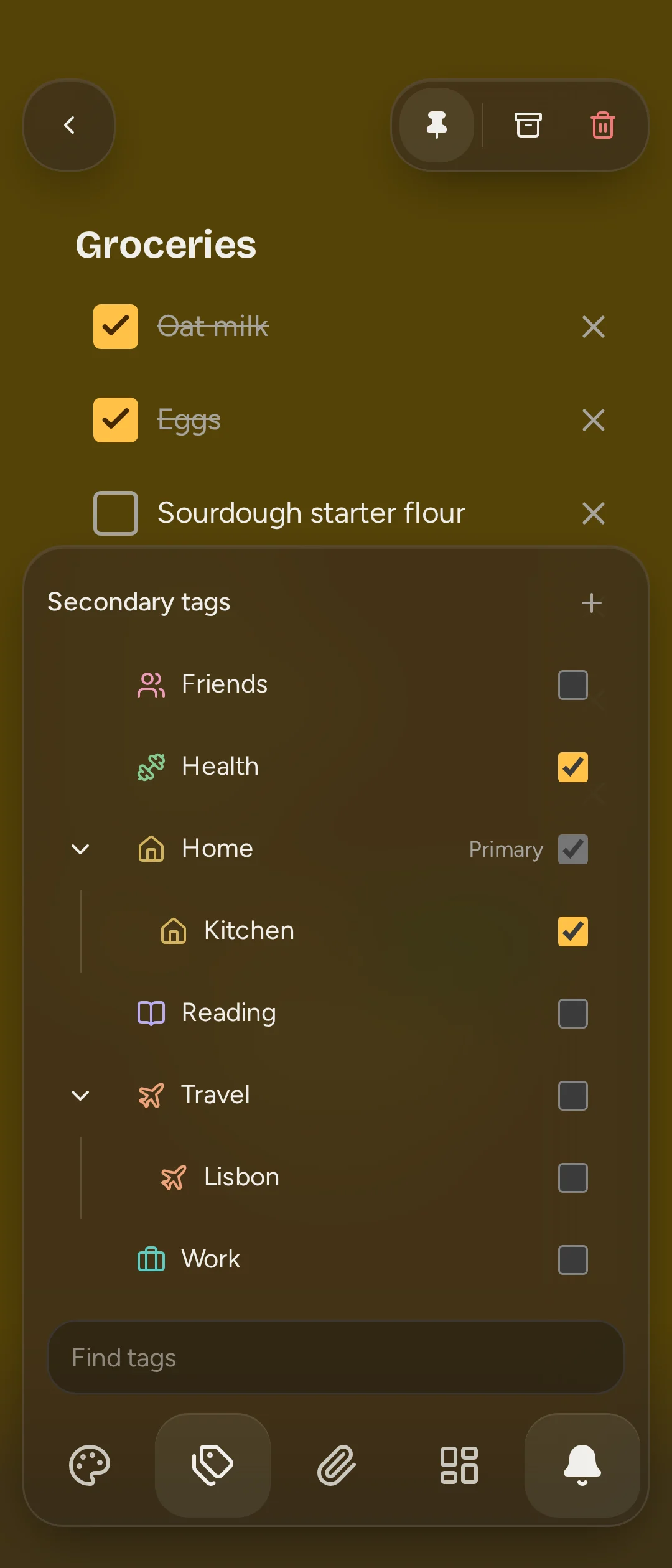
Use Tags in the note's dock. Search or expand the tree, then check the tags you want. Secondary tags add context without changing the background.
In one branch, Catch keeps the deepest secondary tags you select. Selecting Work > Projects replaces a secondary Work; sibling tags can coexist. A primary Work and secondary Work > Projects can coexist because their roles are separate.
A note's badges show its tags, primary first. Tap, focus or hover a badge to see the full path. Search can match either role and includes descendants when you select a parent.