

Google Keep import
Bring a Google Takeout export into your Catch account.
Download an export
Open Google Takeout for Keep, select Keep and request a .zip export. Download every part if Google splits it into several archives. Keep that export until you have checked the import. Google's download guide explains its export options.
Catch reads .zip, not .tgz. You can also choose an unpacked export's JSON and media files together. HTML files alone are not the note data the importer needs.
Import into Catch
- Sign in to the account that should own the notes.
- Connect to the server and wait for your notes and attachment catalog to sync.
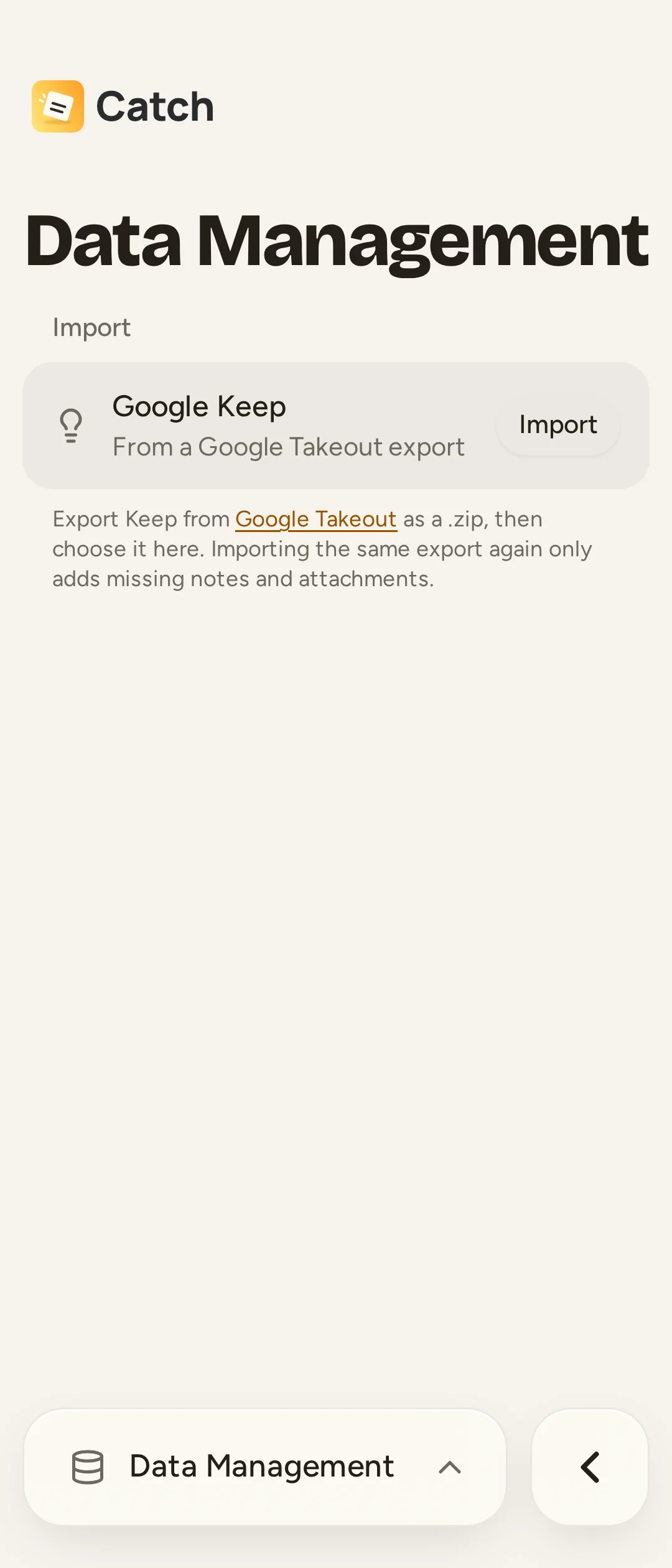
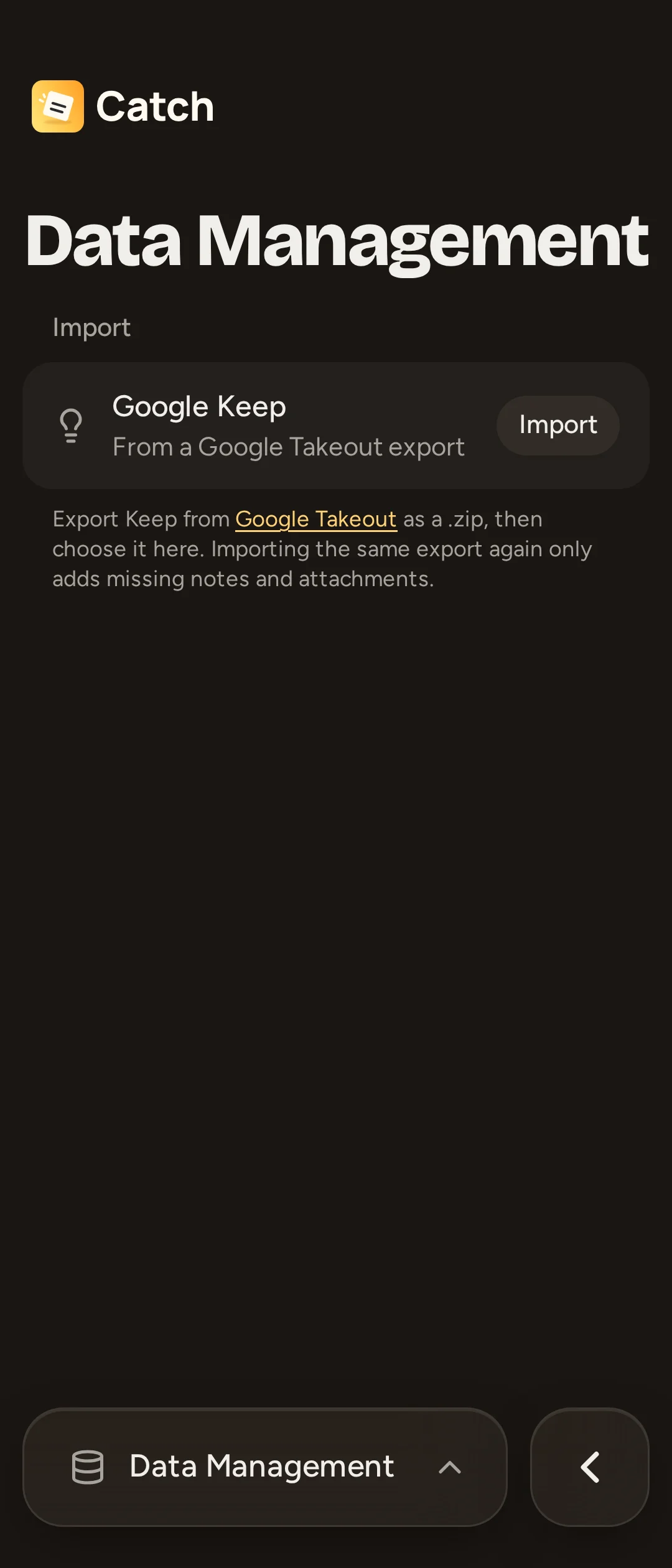
- Open Settings > Data Management. Under Google Keep, select Import.
- Choose all ZIP parts together, or all relevant JSON and media files.
- Read the summary of notes, files and items left out. Nothing is added while Catch is reading the export.
- Confirm Import and follow progress in Settings.
Imported notes go to ordinary Gallery, outside the vault. Catch cannot import into the vault or move existing ordinary notes into it.
The archive is read on this device. The server receives notes and individual attachment uploads, not your Takeout archive. Imported notes go after your existing notes, newest edited first. File extraction continues if you visit another Catch page, but keep the app running until file preparation finishes: unprepared files cannot resume after an app restart.
What comes across
Catch imports text, checklist items and their checked state, titles as headings, supported colors, pins, archive status, creation/edit dates and usable attachment files. Keep link annotations become links where they are not already in the text. Media appears in each note's Media section, without automatically adding inline blocks.
It leaves out Keep labels, notes in Keep's Trash, rich-text formatting and reminder schedules. Catch has tags, but the Keep importer does not convert labels into them. Recreate those tags and reminders after importing. Missing, empty, ambiguous and oversized files are reported; files over 100 MiB are skipped. A media-only note is skipped if none of its files can be used.
The label warning is older than Catch's tags
The import summary may say labels stay behind because Catch does not have them yet. Catch does have tags; label conversion is the part that is missing.
Retry without making duplicates
Importing the same export again adds missing notes and attachments without overwriting existing notes or their settings. It also retries files that were not prepared before a restart. Files you explicitly removed stay removed.
A note you deleted forever can return when you import its source again. Check the final summary for failures, let uploads sync, and compare a few text notes, checklists and media notes before relying on the imported copy. Importing is a one-time transfer, not continuing sync with Google Keep.