
Note editor
Create a note, format it and understand when it is saved.
Create a note
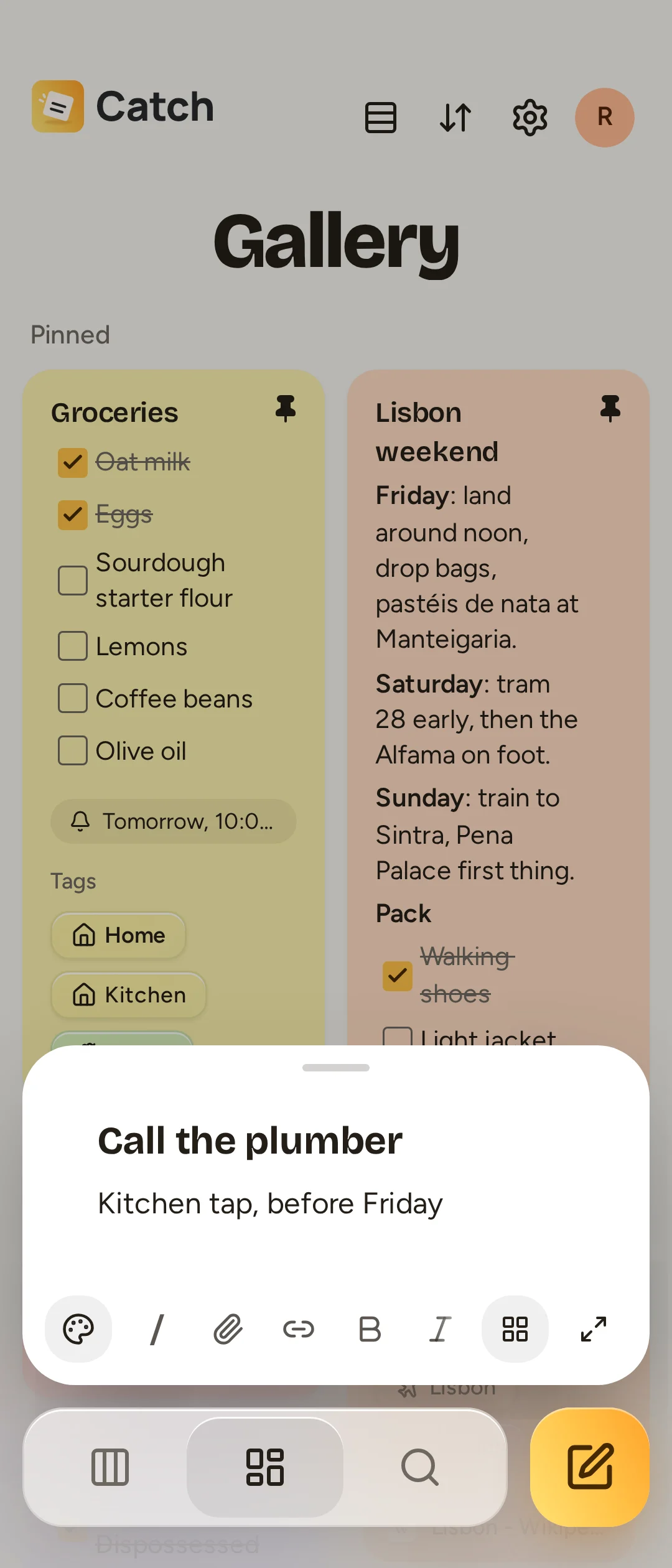
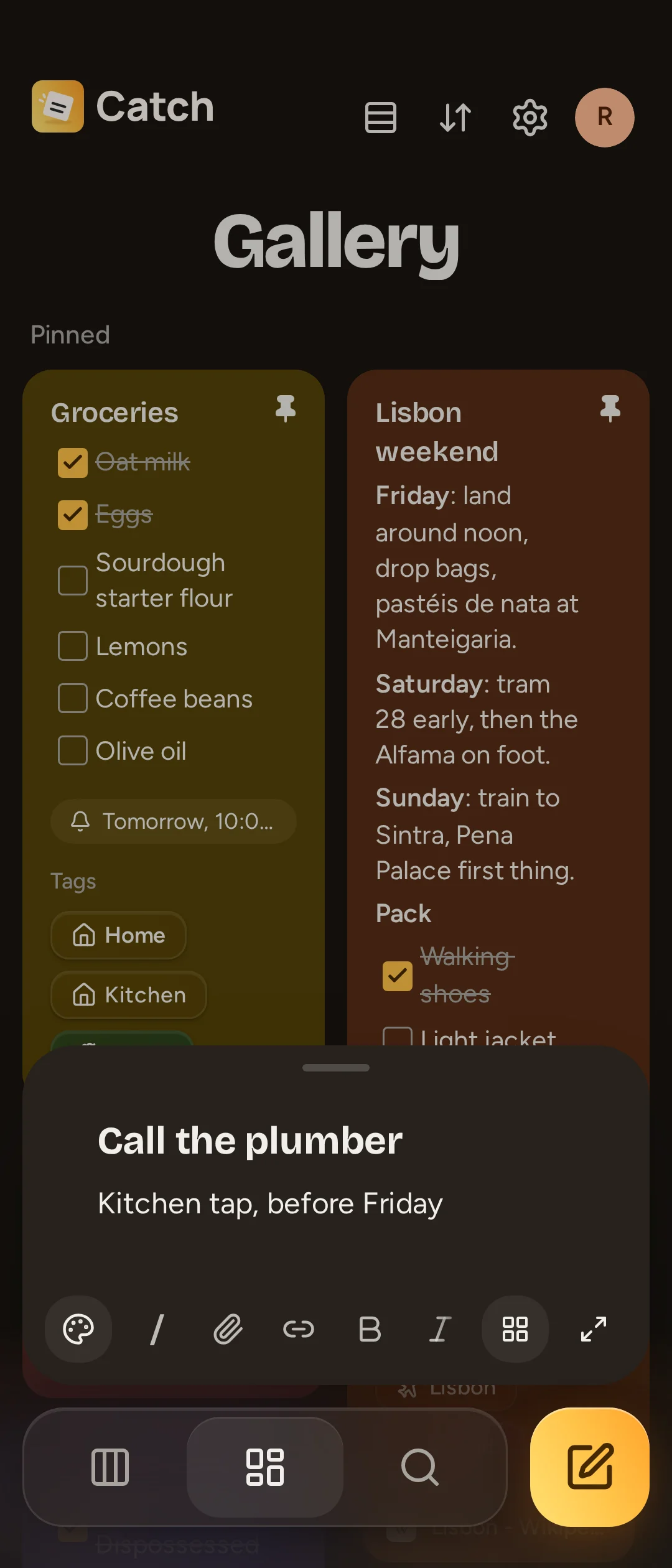
- Select + to open New note above the dock.
- Write your text. Use Formatting to show formatting controls and Colors to choose a background.
- Select Save to Gallery or Save to Deck, depending on the destination shown. Expand opens the full editor if you need more room.
The quick note also has Save link for capturing a web page. You can add files with Attach files.
Catch does not have a separate title field. The first line of text stands in for the note's title in places that need one. Use a heading if you want a title to stand out.
Edit and format
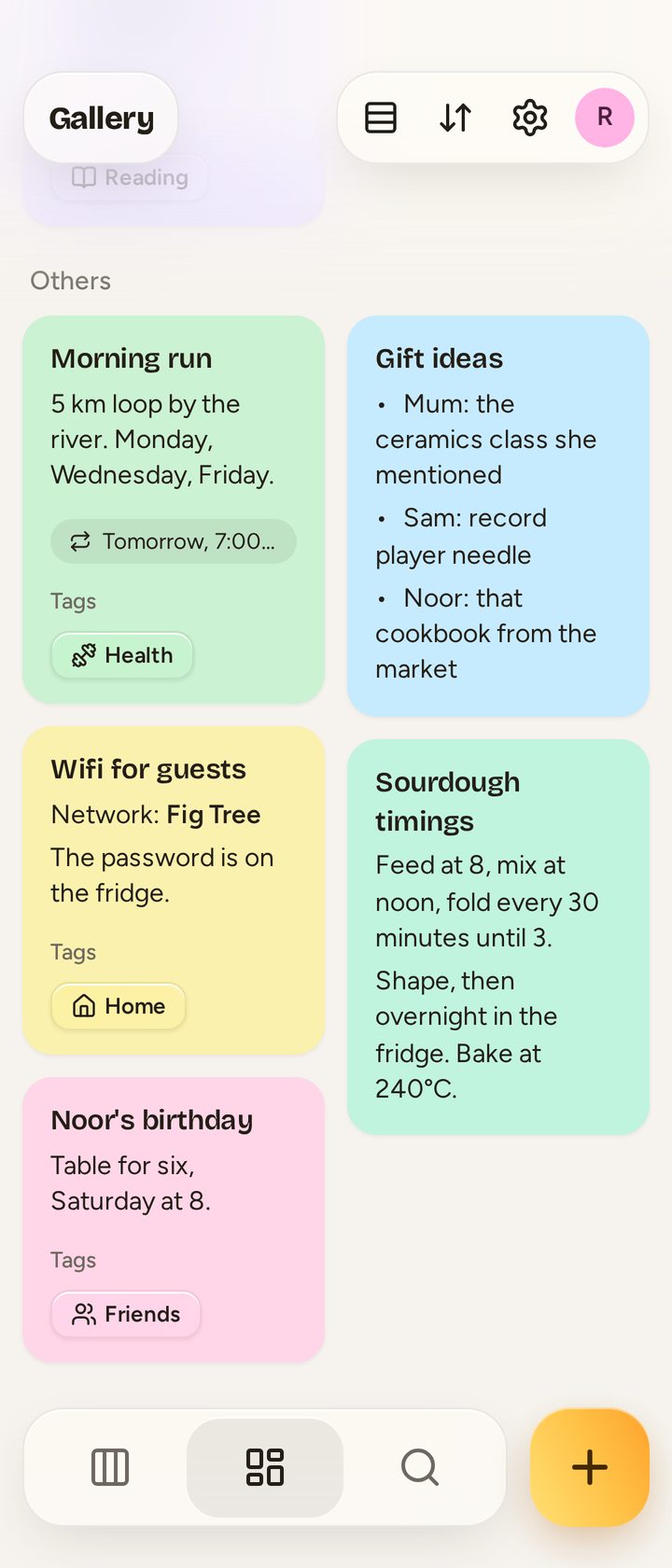
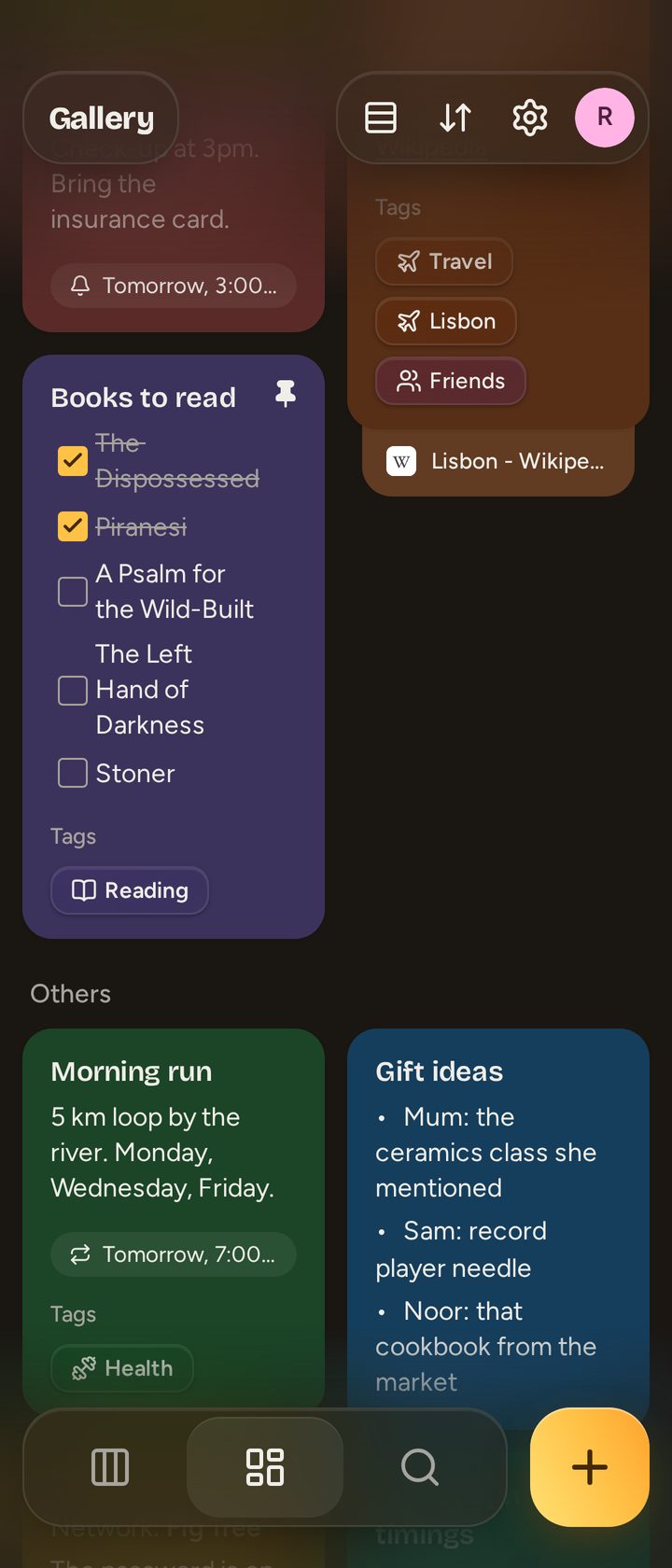
Tap or click a note to open it. Edit directly in the note; Catch saves as you work. Close, the back gesture or Escape closes the editor. An empty new note is discarded when you close it.
While typing on a phone, the dock becomes a formatting toolbar. Scroll the toolbar horizontally to reach more controls. It offers Bold, Italic, Underline, Strikethrough, Heading, Bulleted list, Numbered list, Checklist, Indent and Outdent. Check a checklist box to mark an item complete.
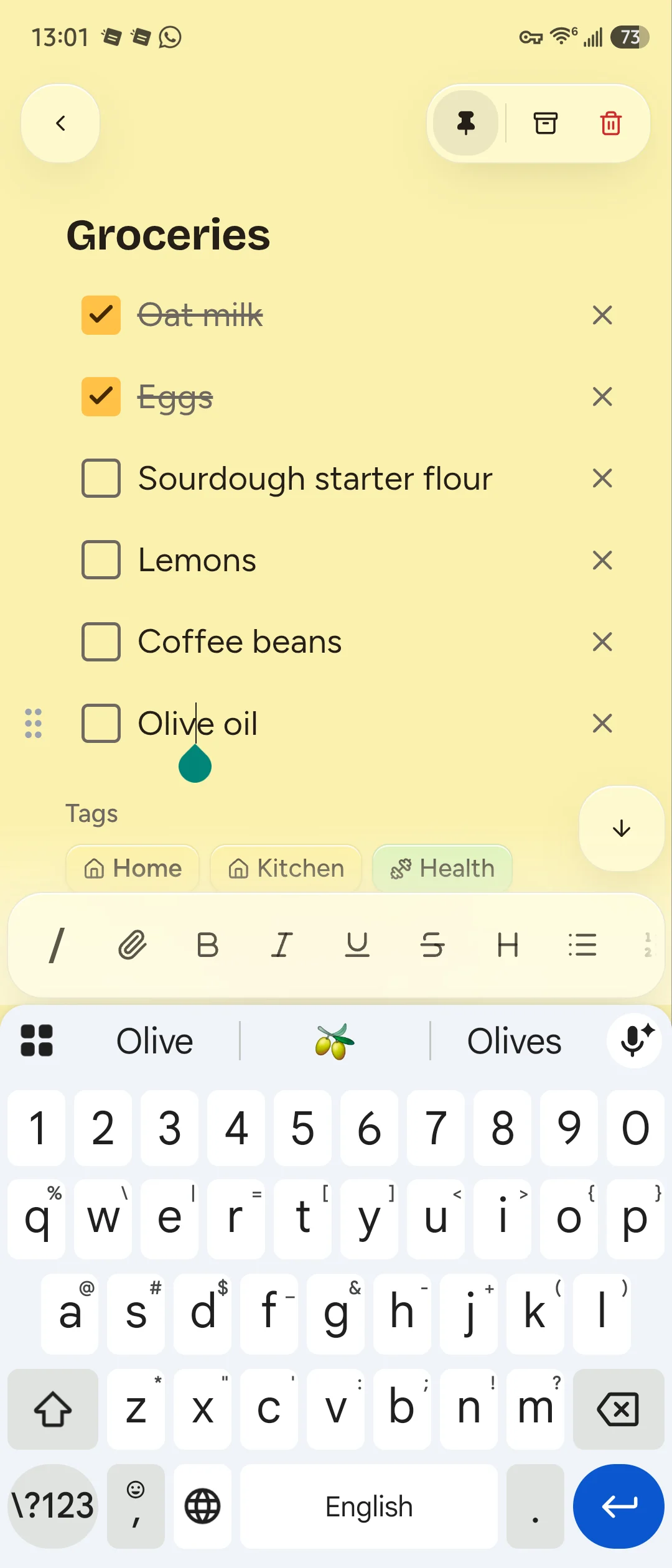
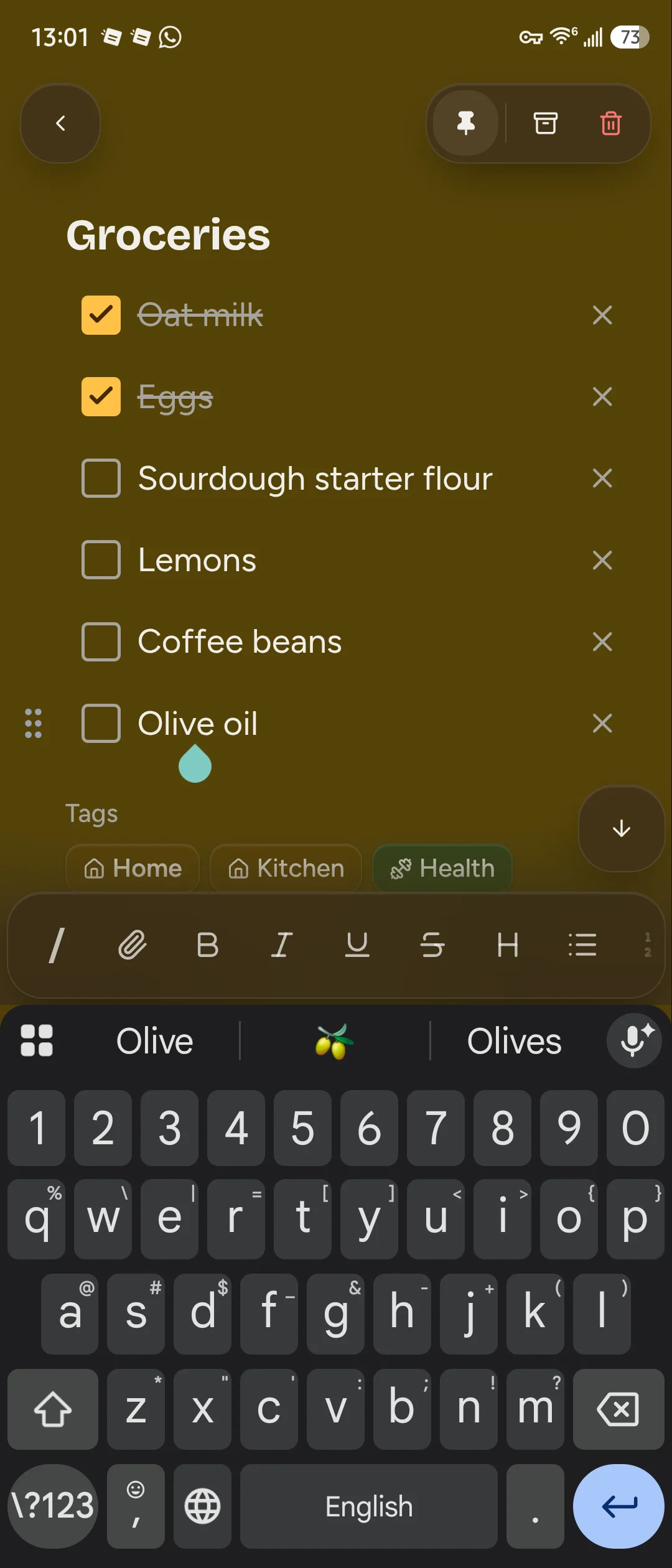
Use Slash menu, or type /, to choose a block. The editor supports paragraphs, headings, lists, checklists, tables, code blocks and media blocks. Blocks can be moved with their drag handles. Use Undo and redo to open the editor's Undo and Redo controls; this is editing history, not a saved version history of your note.
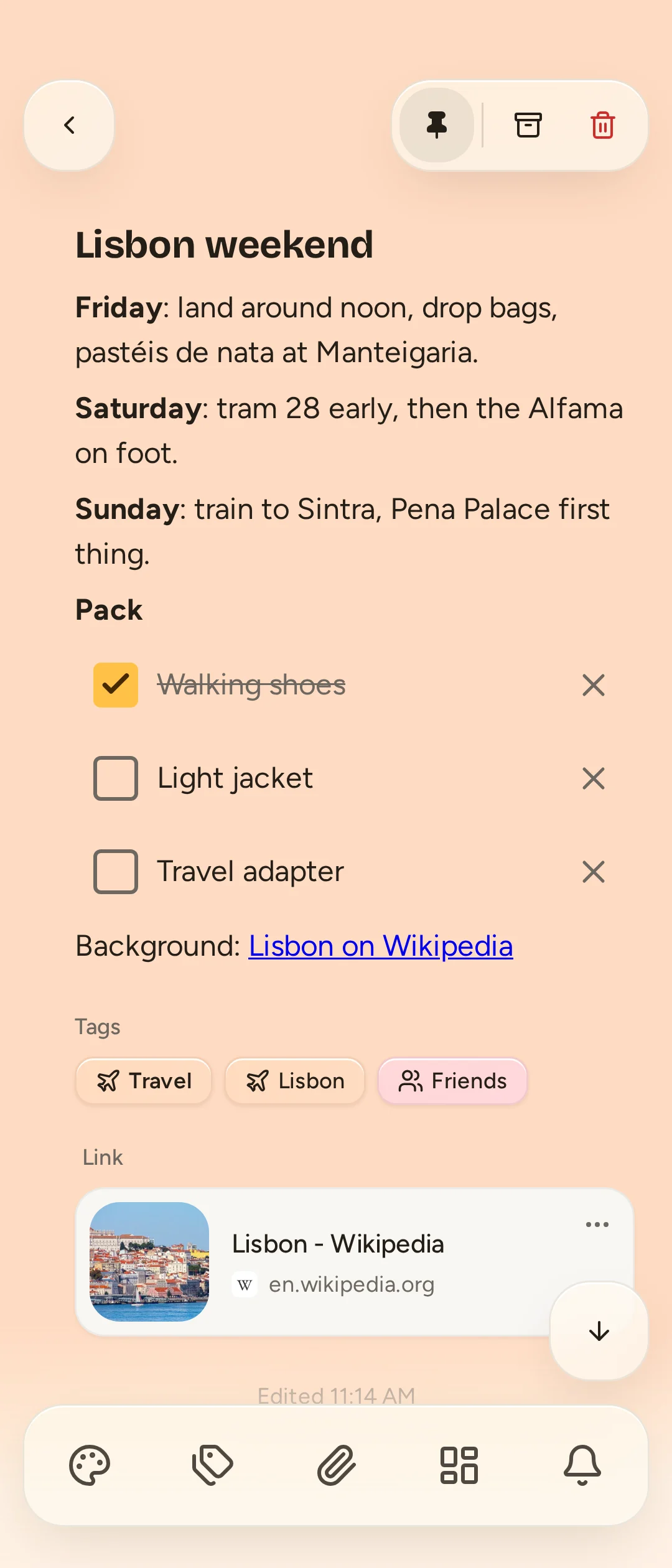
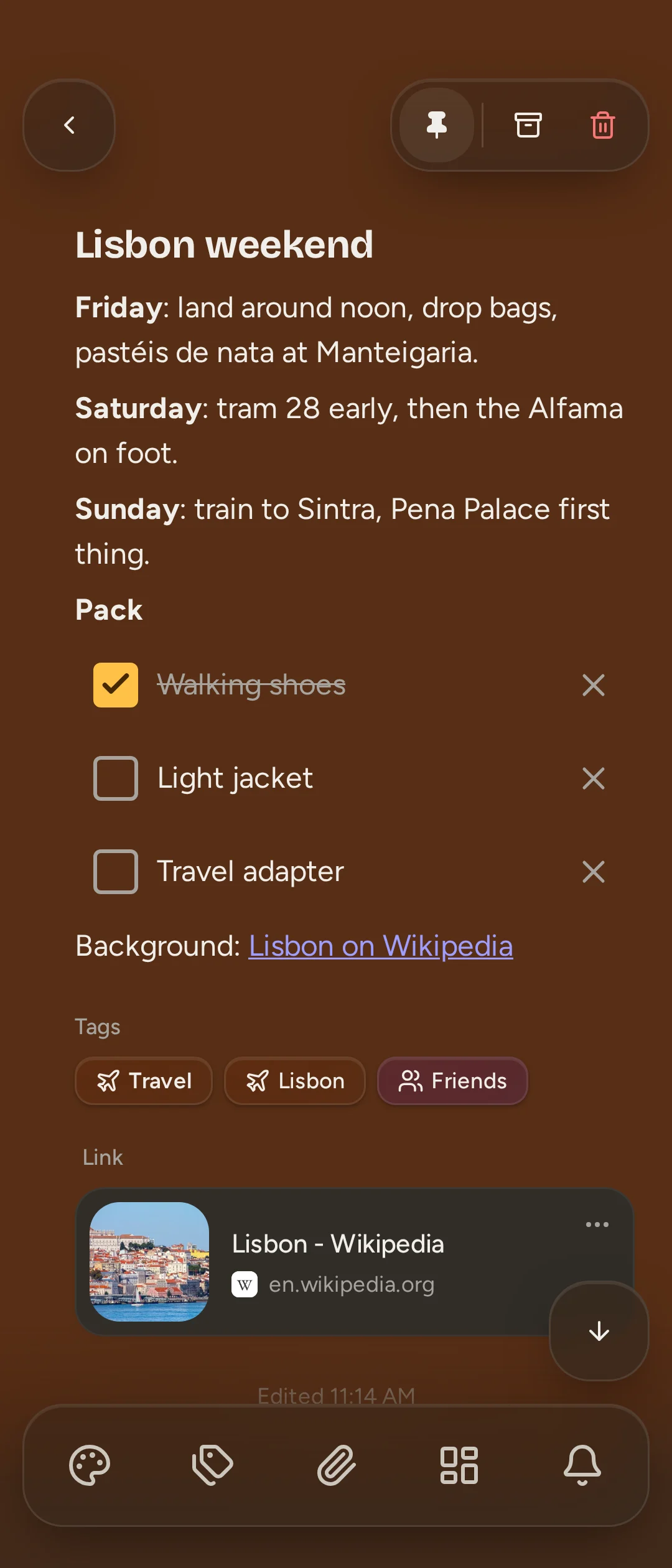
Open notes have Pin, Archive and Move to trash in the header. The dock offers Background color, Tags, Attach files, Move note and Reminder. If the keyboard is showing formatting controls, dismiss it to reach the other dock actions.
Read the save status
- Syncing…: changes are being saved or are waiting to sync.
- Synced: pending changes have finished syncing.
- Saved on this device: changes are kept locally while the server cannot accept them.
- Not saved: a save failed. Read the error message and address it before leaving the note.
Local changes need to sync before another device can see them. Read Offline and updates for connection problems and conflicts between devices.
Make a copy
Select the note, then choose Make a copy. Copies keep the note's content, tags and attachments; their attachment files are independent. A reminder is not copied.