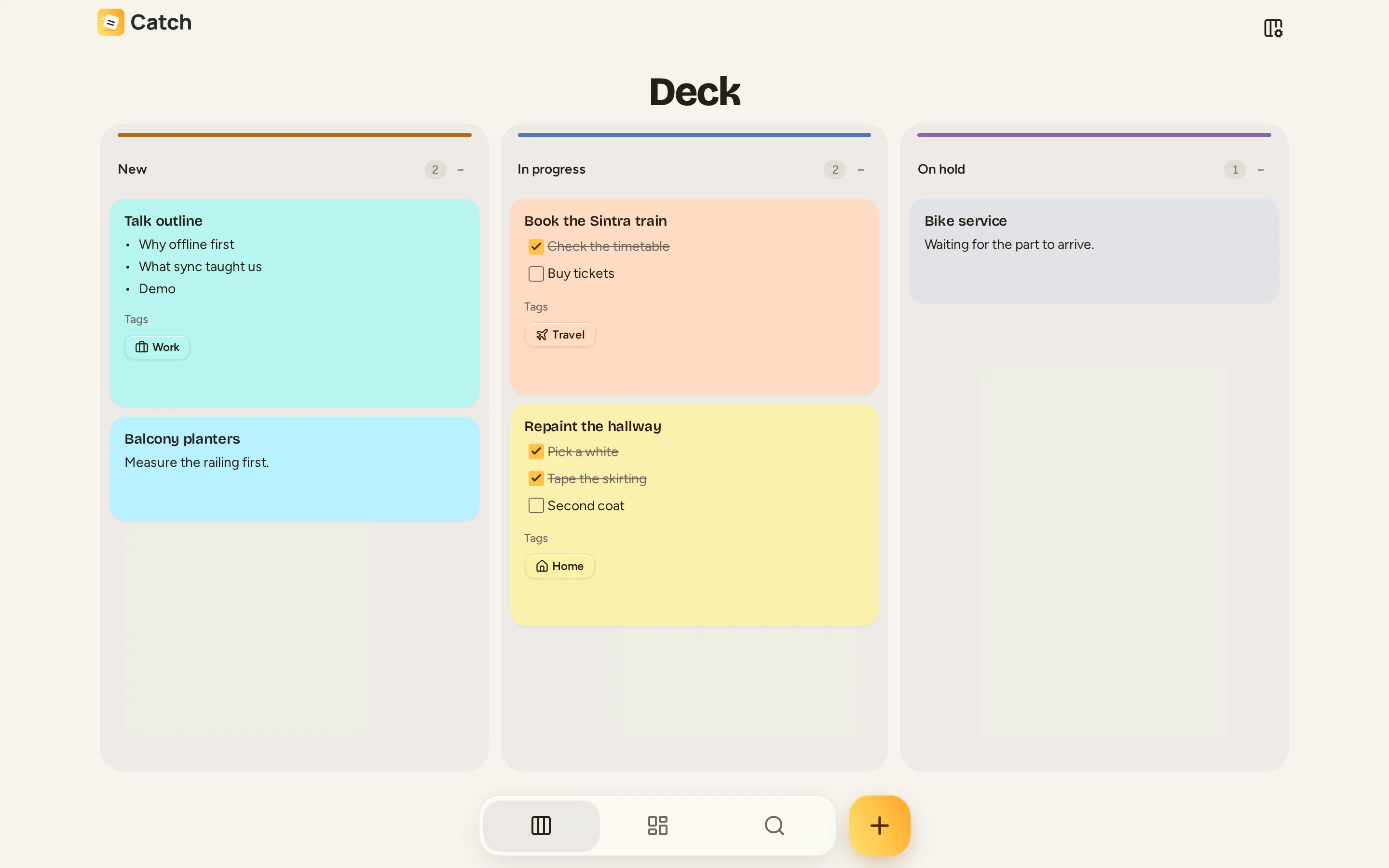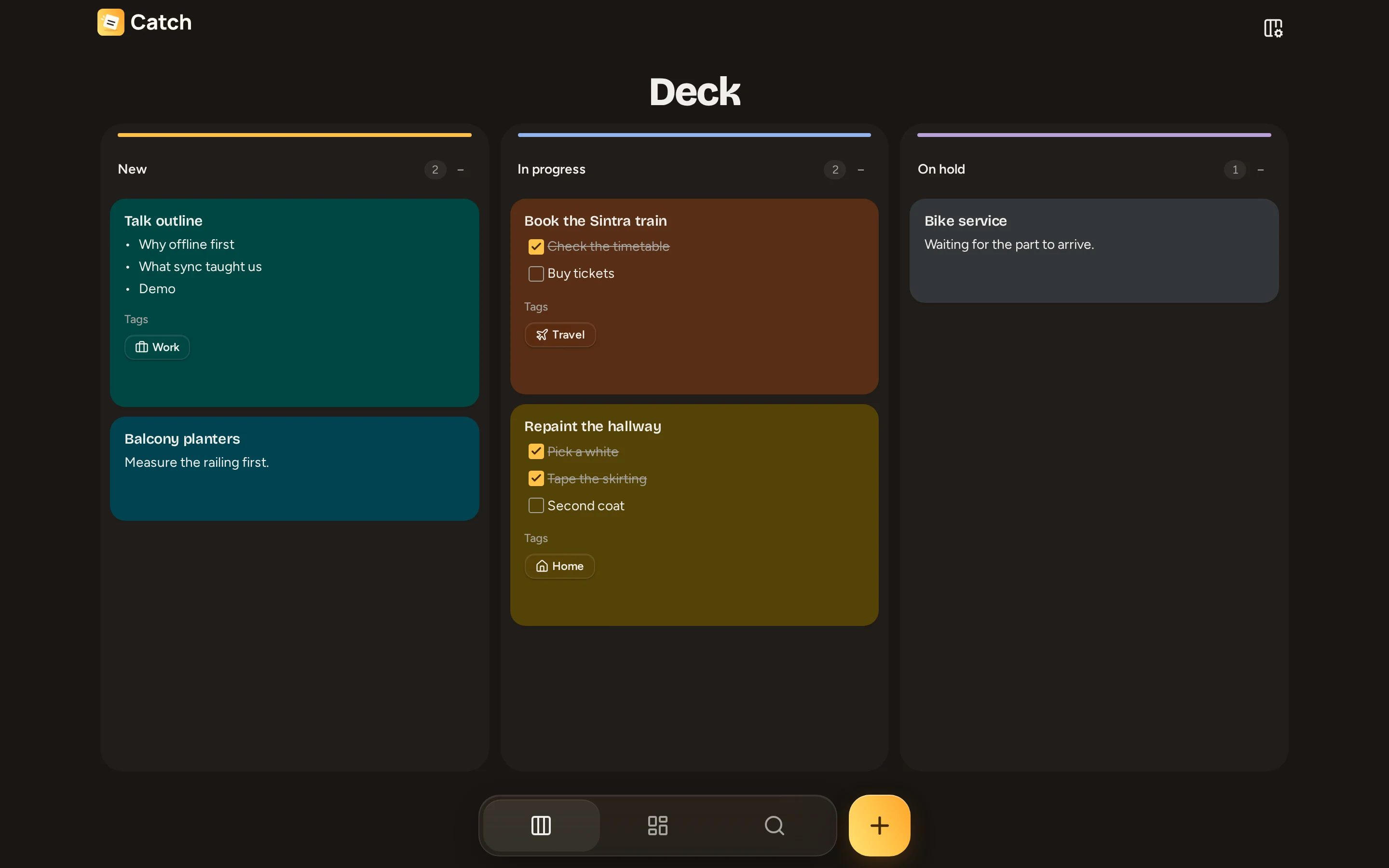

Deck
Move notes through your own columns.
Deck holds active notes arranged in columns. New accounts start with New, In progress and On hold. You can change this workflow to fit your own tasks.
Put a note in a column
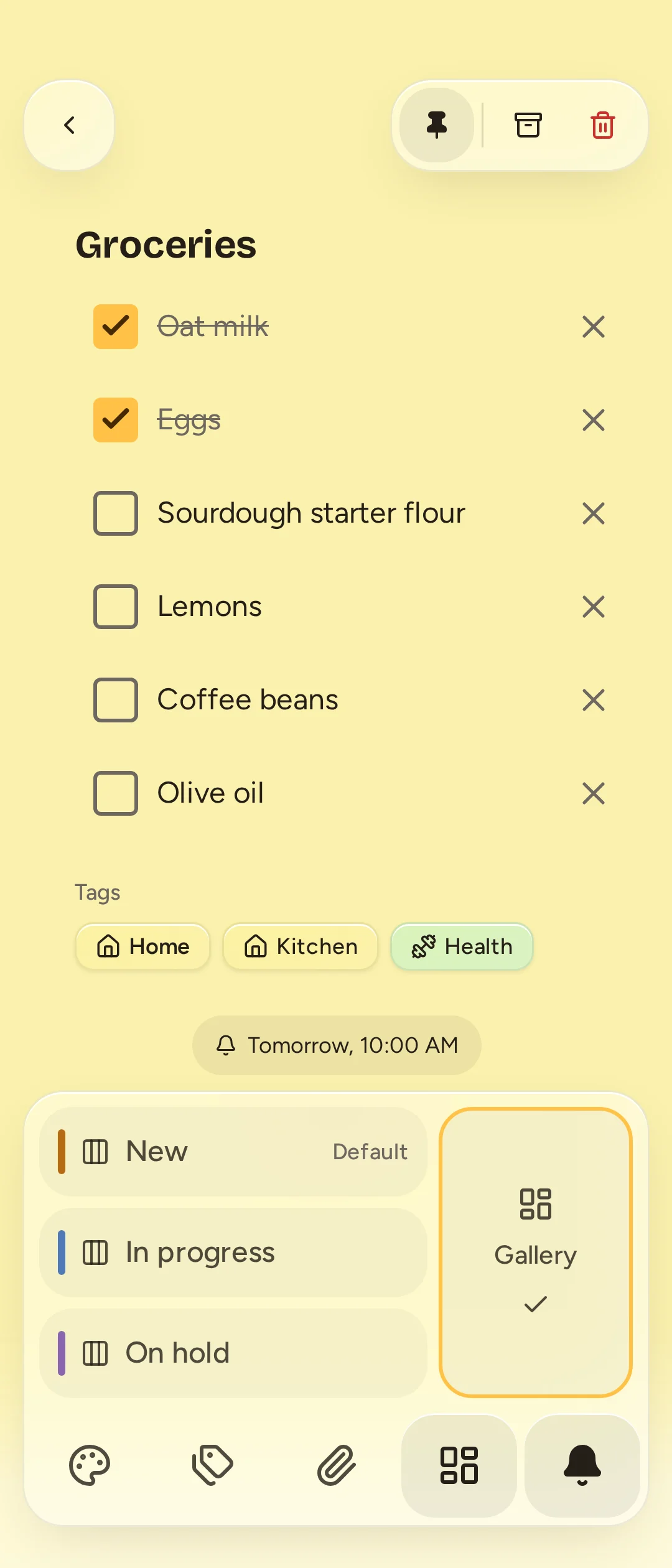
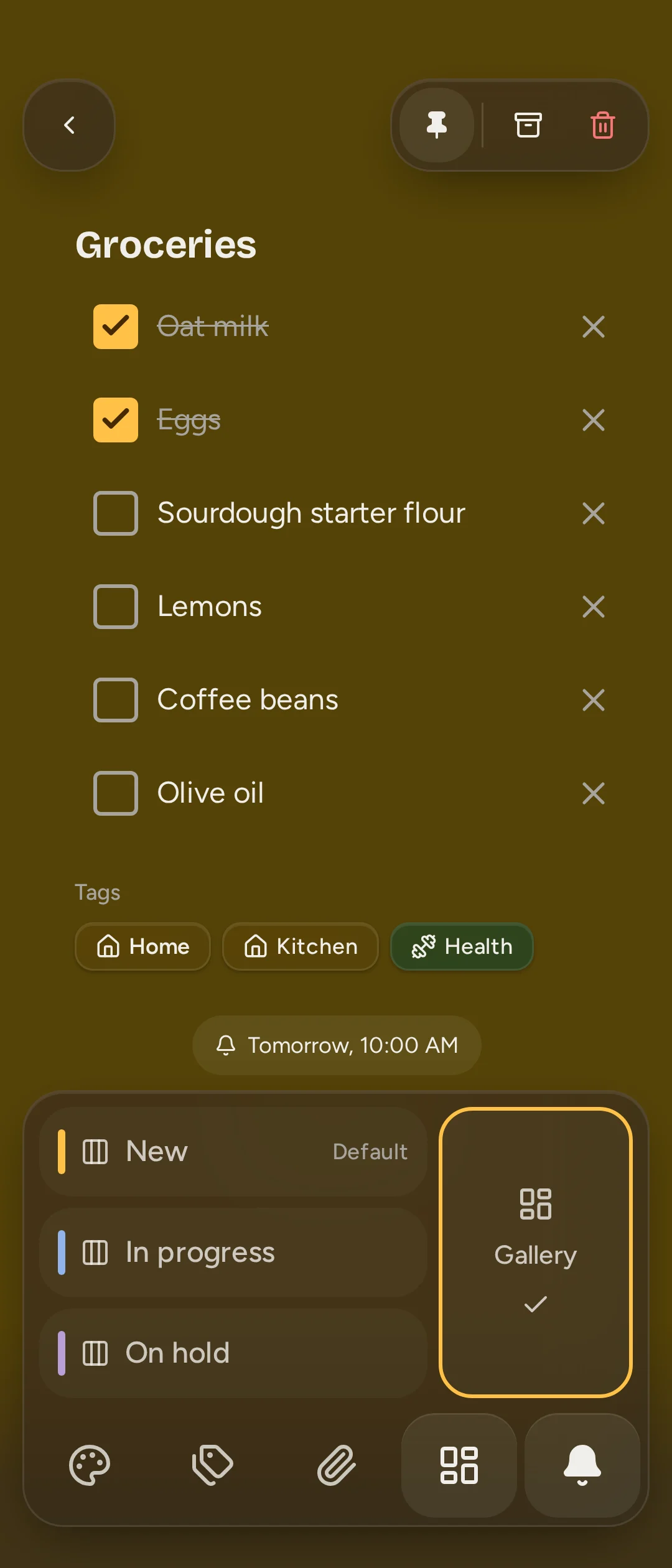
Create a note with Save to Deck, or open an existing note, select Move note and choose a Deck column. New Deck notes go into the default column, originally named New.
Drag a card to move it between columns or reorder it inside a column. On touch, hold before dragging. While moving a card, Send to gallery moves it out of the Deck. You can also choose Gallery in Move note, or select several Deck notes and use Send to gallery.
On a phone, choose a column tab to see that column. Tabs scroll horizontally if they do not fit. Wide boards can scroll horizontally too. On a wide board, collapse a column to hide its cards while keeping its name and count visible; expand it to show them again.
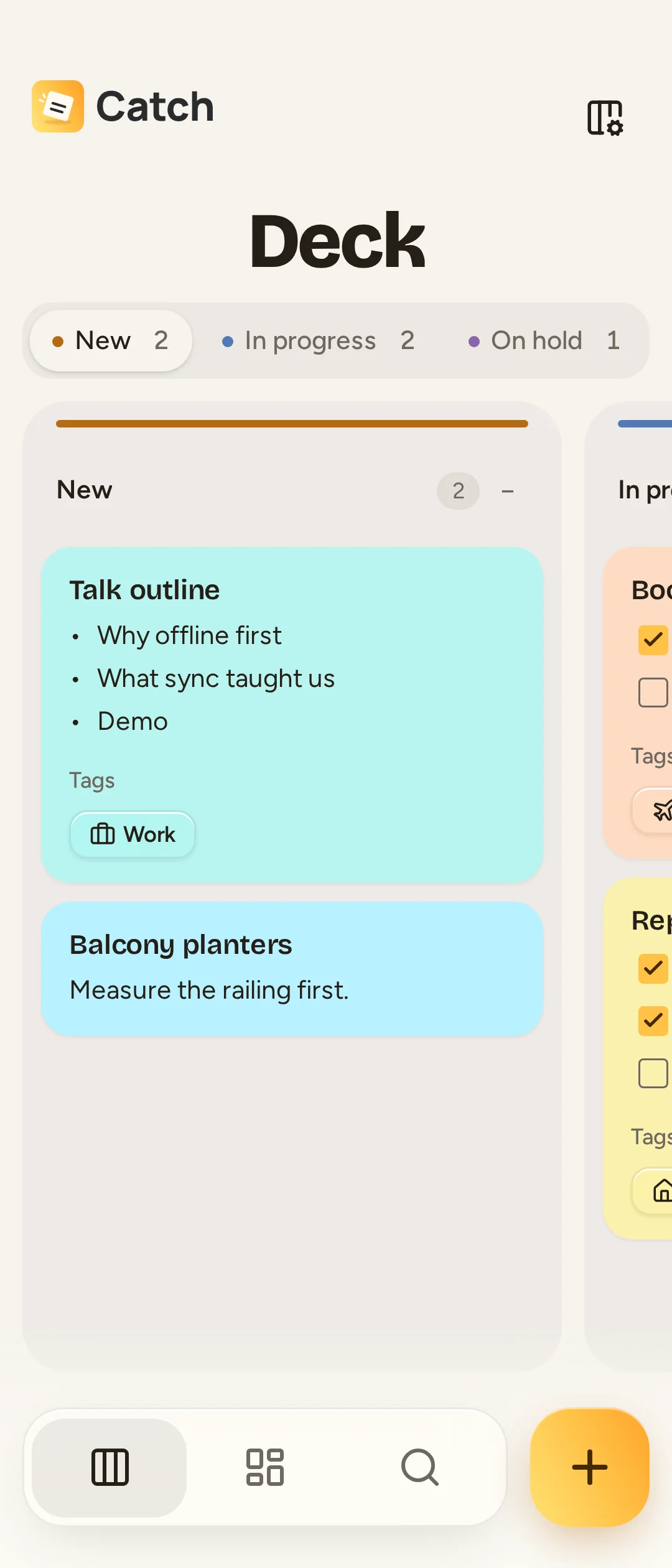
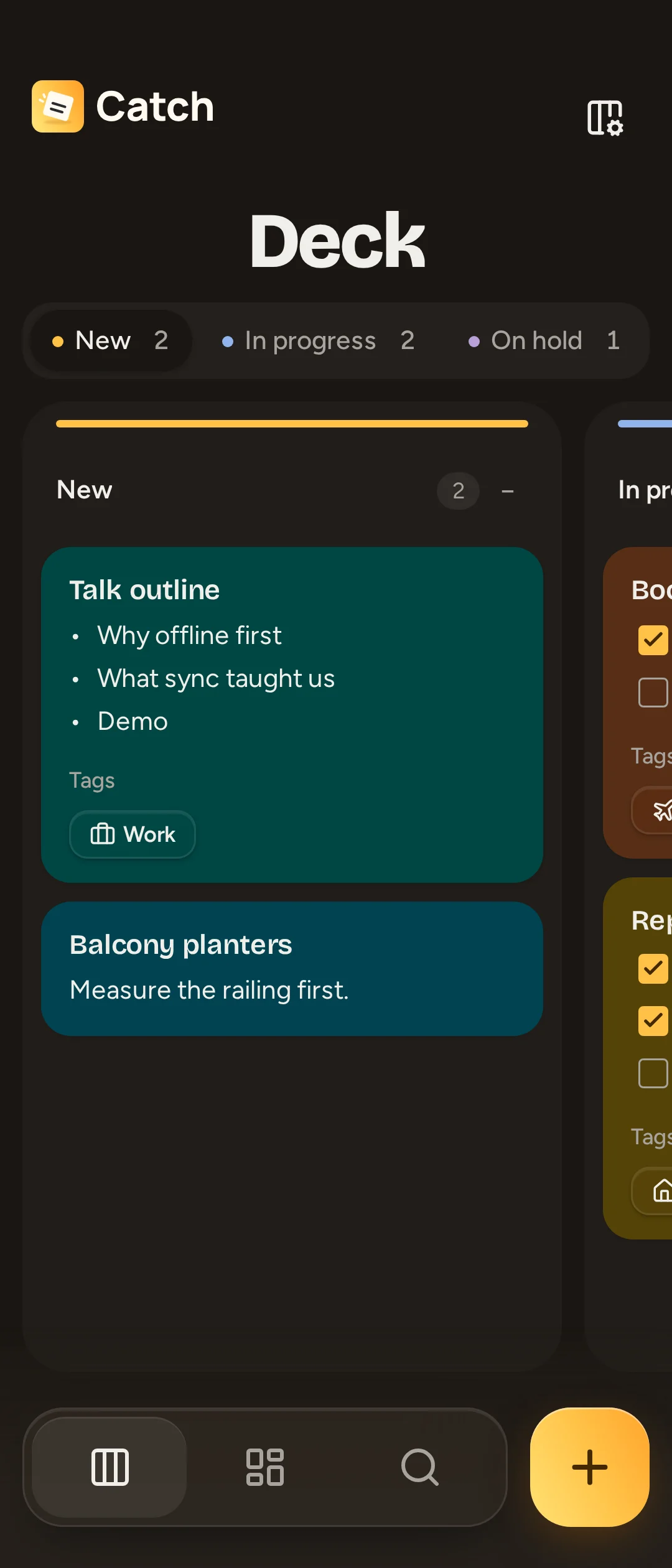
Edit columns
- Open Deck and select Edit columns.
- Enter a New column name and select Add column.
- Rename a column, choose its Column color, or drag its reorder control. The reorder control also supports arrow keys.
- To remove a column, choose its delete control and confirm.
You can rename, recolor and reorder the default column, but cannot delete it. Deleting another column moves its notes to the default column, including notes currently archived or in Trash. It does not delete those notes.
Names, colors and ordering sync between devices and can be changed offline. Collapsed columns are a preference on this device. Pinning, tags, attachments and reminders work on Deck notes as they do in Gallery.