

Settings and accounts
Change preferences, passwords and the account you use.
Open Settings from the Gallery header. On a wide screen, pages are listed beside the current one. On a phone, the dock's settings picker switches pages.
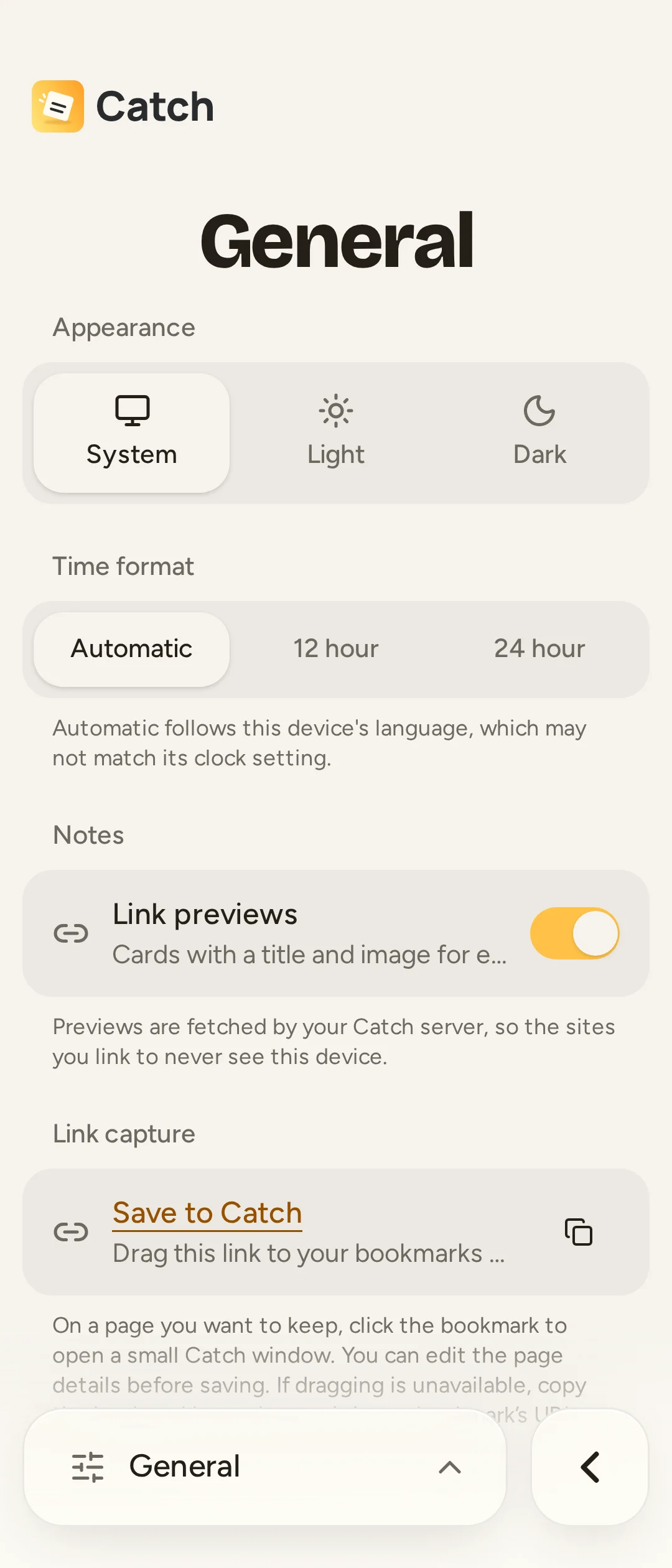
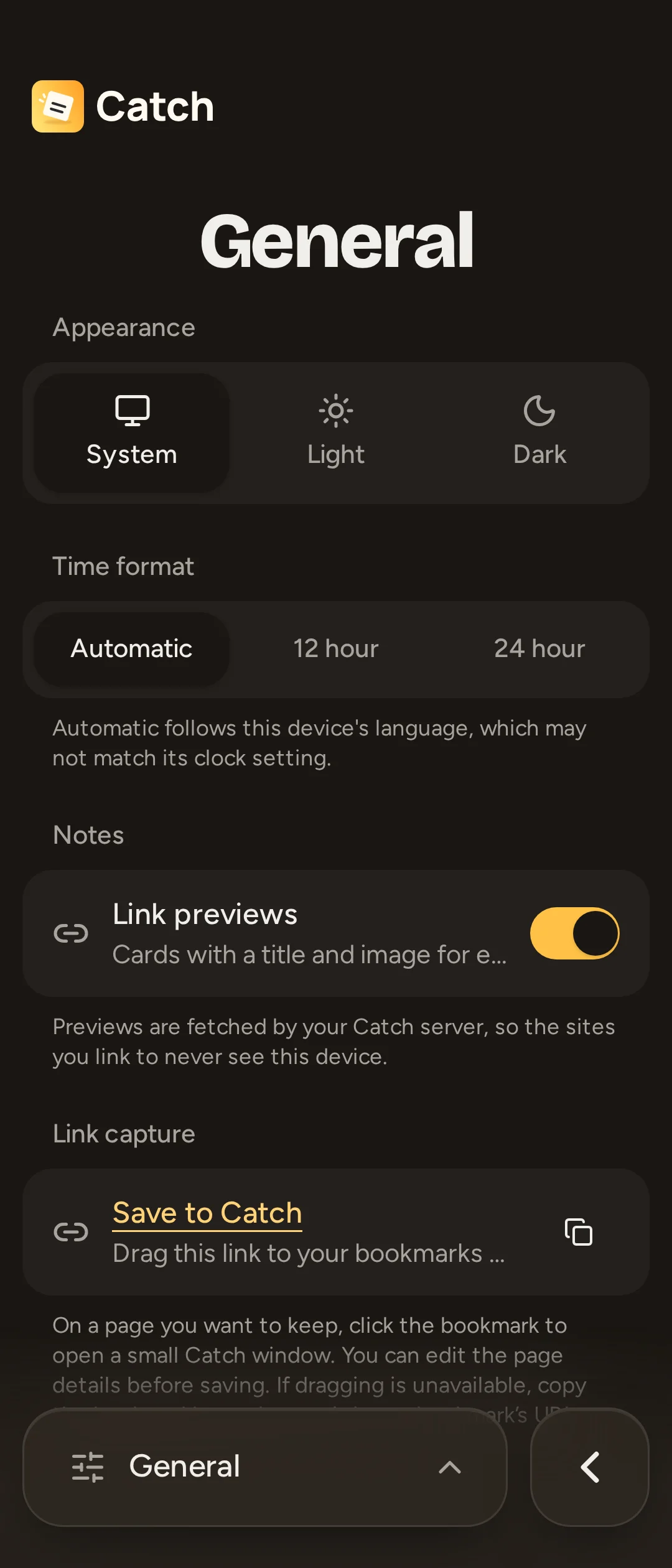
General
- Appearance: choose System, Light or Dark.
- Time format: choose Automatic, 12 hour or 24 hour. Automatic follows the browser's language convention; in the native Android app it follows the phone's clock setting.
- Notes > Link previews: show or hide preview cards. Your server must also allow fetching previews.
- Link capture: install the browser bookmarklet.
Appearance and time format are preferences on this device. Gallery layout, sorting, collapsed columns, recent searches and the archived-search preference are also local view choices.
Tags, Notifications and Data Management
Tags manages your tag tree. Notifications controls reminder delivery, snooze and quick times. Delivery is enabled per device; snooze and quick times belong to your account across devices.
Data Management currently contains the Google Keep importer. It does not offer a general note export or a personal backup/restore tool. Administrators have whole-server backups under Admin.
Update shows versions, releases and update actions.
Vault
Vault sets up and manages your encrypted vault. You can unlock or lock it, remember it on this device, hide the header shortcut, change its password or delete it. Its password is separate from your account password; an account password reset cannot open the vault.
Change your password
Open Account, then Change password. Enter your current and new passwords and confirm the change. The new password must have 8–128 characters. Select Save password to apply it. Changing it signs out your other sessions; they need to sign in again to sync.
If you forget it, ask an administrator to reset it. Catch has no email password-recovery flow. The administrator gives you a temporary password; sign in and replace it in Account settings. Temporary passwords do not automatically expire.
Account also shows who is signed in and, on Android, the server's address. There is no server-switching control here; the Android setup connects the app to one server. Different Android channels have independent app data.
Use several accounts
Tap your avatar in the Gallery header to open the account list. Select Add account to sign in to another account on the same server without signing the first one out. Select an account to switch to it; a swipe across the avatar also switches accounts.
Close any open note or composer first. Switching reloads the app, keeps each account's local data separate and does not delete its queued work. That work sends when the account is open again. Browser tabs can show different accounts at the same time.
When several accounts are signed in, browser addresses can contain a device-local number such as /u/2/archive. A bookmark uses that number on this device; the same number need not identify the same account on another device. A Catch note URL is not a way to share access.
Sign out
Use Sign out in Account settings, or the sign-out control beside an account in the avatar list. Catch removes only that account from this device. Its server notes remain, but its local database, pending changes and files are deleted. With another account signed in, Catch switches to it.
Wait for pending work to sync first. The warning about unsynced changes is a warning that they will be deleted, not an offer to save them elsewhere.
Administrators also see Admin > Users and Admin > Backups. Those controls require a connection and are covered in the admin guide.