

Links and sharing
Share notes by link or as Markdown, capture web pages and receive shares.
Share a Catch note
Open an ordinary note and select Share in its toolbar. Choose Catch link to give someone continuing read-only access, or Note content to send a Markdown copy.
Create a link
With Catch link selected, choose Create link on desktop or Share link on devices with a system share menu. Catch copies the link or opens the device's share menu so you can send it. You can return to this panel on any of your synced devices to copy or share the same link again.
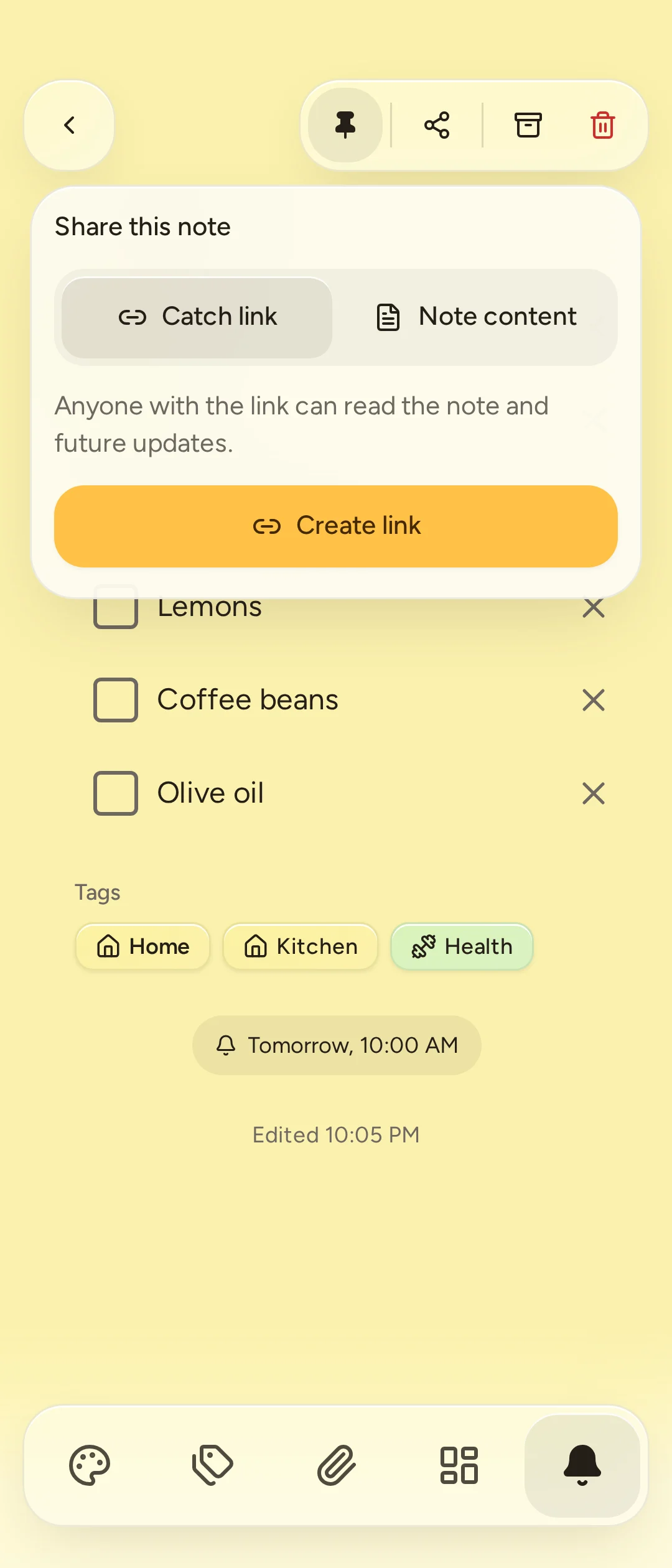
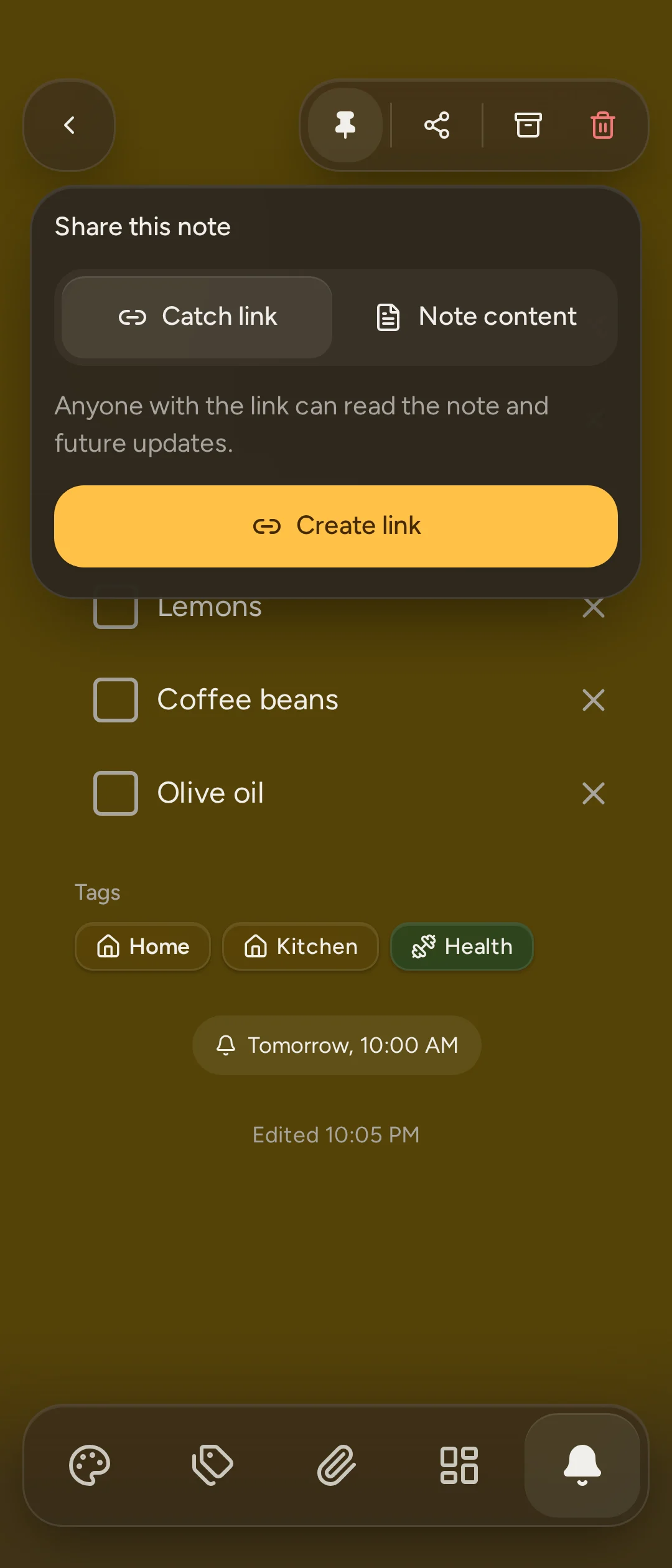
Anyone with the link can read the note and its files without a Catch account. It includes future changes once they reach the server. The link grants access to this note, not your other notes or account; an ordinary note address does not grant access. Treat the share link as a secret that recipients can forward.
You can create a link offline, but it starts working only after the note and sharing change reach the server. Readers need to reach your server's address; sharing does not make a private-network server publicly reachable.
Add a shared note to your Gallery
Open the link to read it in your browser. With an account on the same server, choose Add to my notes to keep it in Gallery. It follows the owner's synced changes and shows whose note it is. You can pin, reorder, archive or remove it from your notes, but cannot edit its text, tags, color, reminders or files, or put it in Deck. Sharing does not allow collaborative editing.
On Android, links open in the browser. Open in the Catch app hands the link to the installed app connected to that server. An account on another Catch server can read the public page but cannot add the note to its own server.
Stop sharing
Open the owner's Share panel and choose Stop sharing. Once this change syncs, the link stops working and the note leaves recipients' galleries. Sharing it again makes a new link; the old one stays invalid.
Moving the owner's note to Trash temporarily hides it from readers. Restoring it makes the existing link work again; deleting it forever ends access. Stopping sharing cannot take back text or files a reader already copied or downloaded.
Send a content copy
Choose Note content, then Copy content or Share content. This sends a Markdown copy of the note's current text, including unsaved editor text. It includes filenames in place of device-only attachment references, but no files or future updates. It creates no share link. A content copy already sent cannot be revoked.
Vault notes have no outgoing sharing control.
Paste links into notes
Put a web address in a note. Catch derives link previews from the note's links and shows cards with page details when available. Your server fetches those details; the linked site sees the server's request rather than a request from your device.
Settings > General > Link previews controls whether you see those cards. The server administrator can disable fetching for everyone. A plain link remains usable when a preview cannot be fetched. Catch does not save a complete offline copy of the linked page.
Vault notes show plain links without previews, so their addresses are not sent to the server for fetching.
Tap a preview card to open its website. Link options offers Copy link, Share where the device supports it, Show in note, Refresh preview and Remove preview. Share sends the external website's link, not your private Catch note. Remove preview hides that card while leaving the URL in the note's text; its Undo restores it.
Capture a rich link
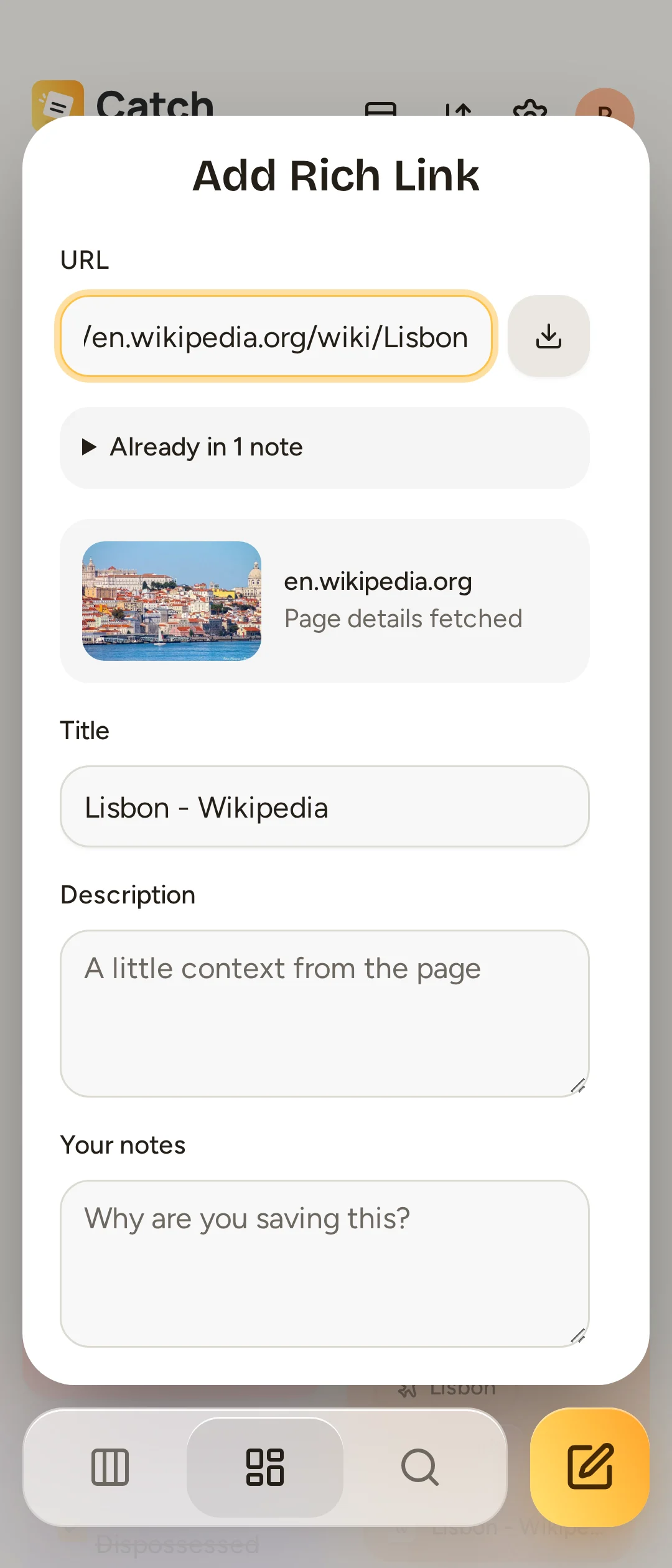
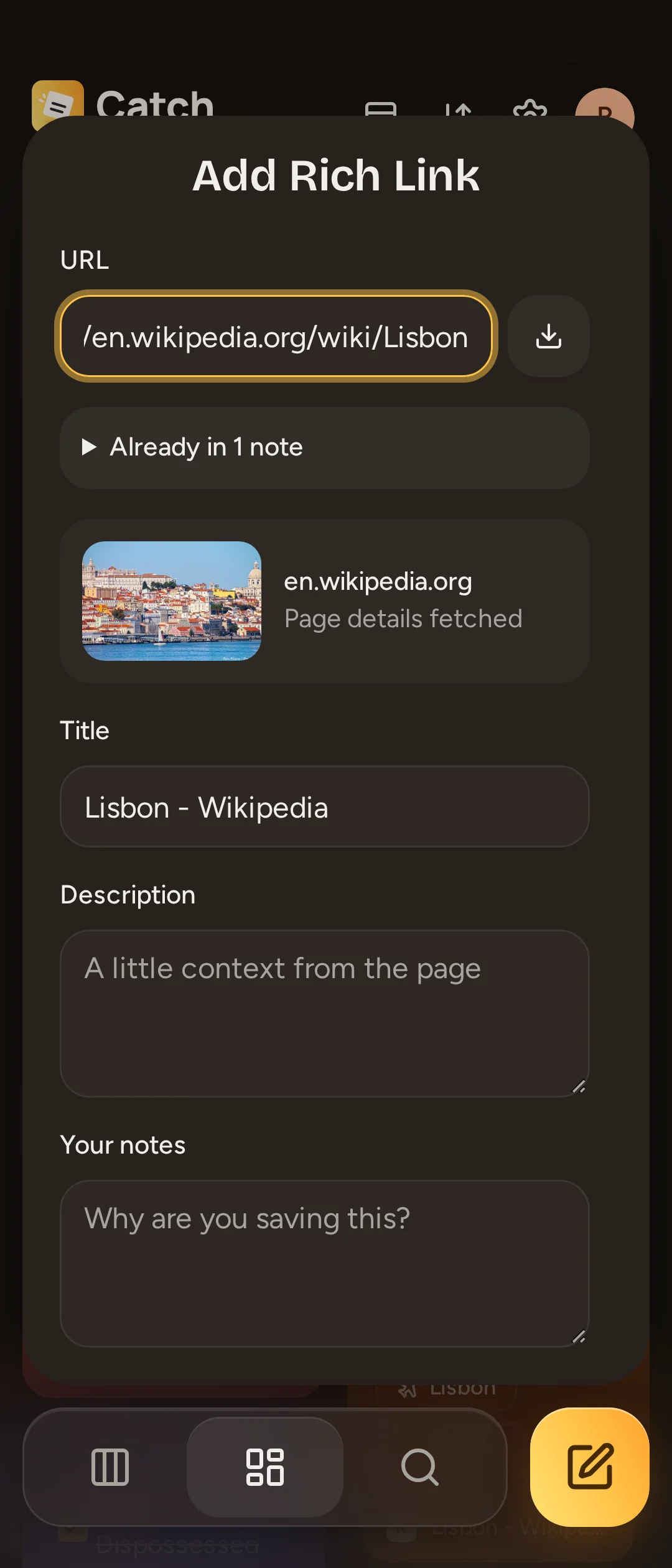
In New note, use Save link to open Add Rich Link. Paste a complete HTTP or HTTPS address into URL. Pasting can fetch details automatically; Fetch details retries. Once details or an error appear, you can edit Title, Description and Your notes, then choose Save link.
If the same address is already in notes, the form offers to open an existing note or save another copy. Fetching details is optional: you can save the address even when the server is unreachable or fetching fails. The new note goes to Gallery.
Add the browser bookmarklet
In Settings > General > Link capture, drag the Catch bookmark link to your browser's bookmarks bar. If dragging is unavailable, use Copy bookmarklet and paste it into a bookmark's URL field.
On a page you want to keep, select that bookmark. A small Catch window opens with the page's details, which you can edit before saving. Allow that window if your browser blocks it, and sign in to your Catch server if asked.
Send material from another app on Android
Use the other app's Share action and choose Catch. The native Android app receives text, links, photos, video, audio and files. An installed Android web app can also receive shares where the browser supports it.
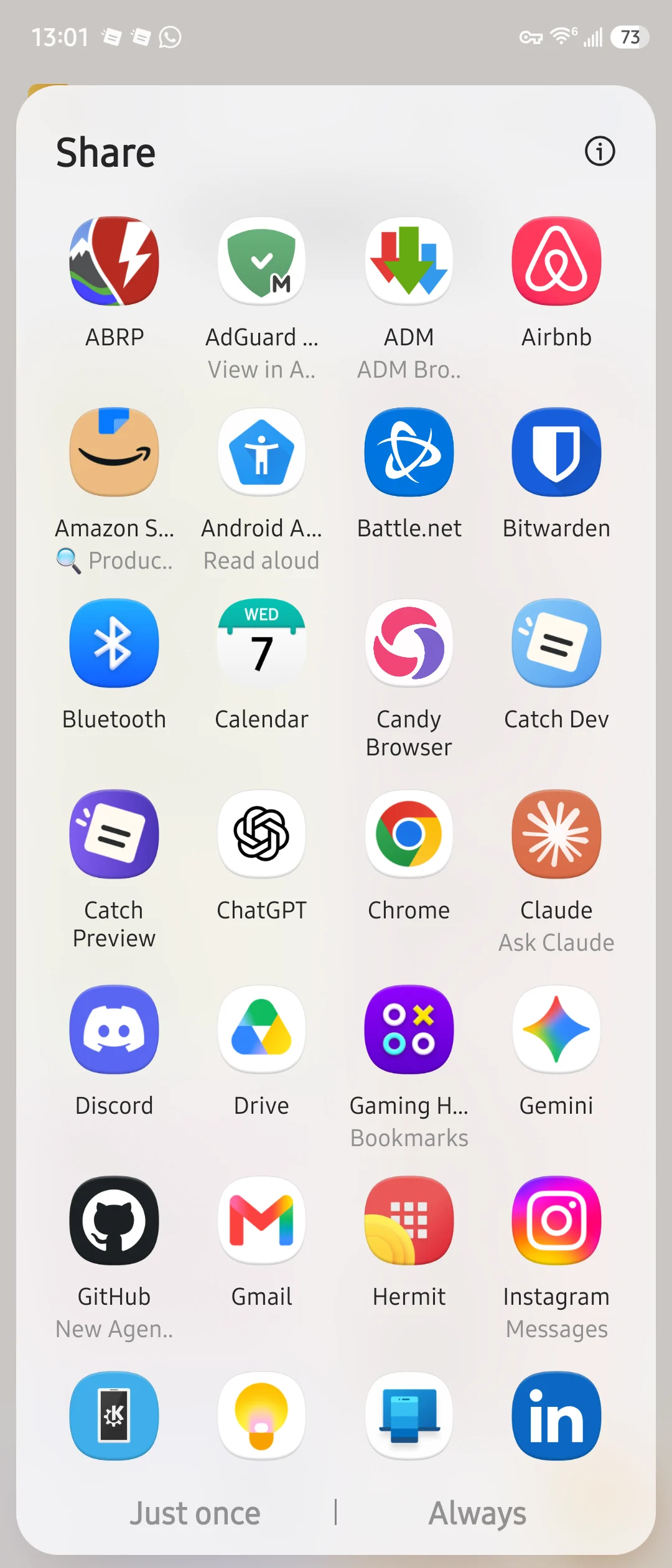
One share makes one Gallery note; multiple files and captions stay together. Text and file shares open the resulting note. A share containing one web link and no files opens link capture first, so you can edit and explicitly save it. Cancelling that capture does not create a note. Incoming shares support at most 20 files, with the same 100 MiB limit per file.
If Catch asks you to connect or sign in, complete that step to finish saving. Check the current account before saving a share. On a device with several accounts, the share is bound to the account that starts processing it.
Catch can receive shares offline after it has been set up, subject to device storage and the one-tab limit. iPhone and iPad web apps do not have this incoming share target.
Incoming shares go to ordinary Gallery, even when you were viewing the vault. They do not create encrypted vault notes or a public sharing link.