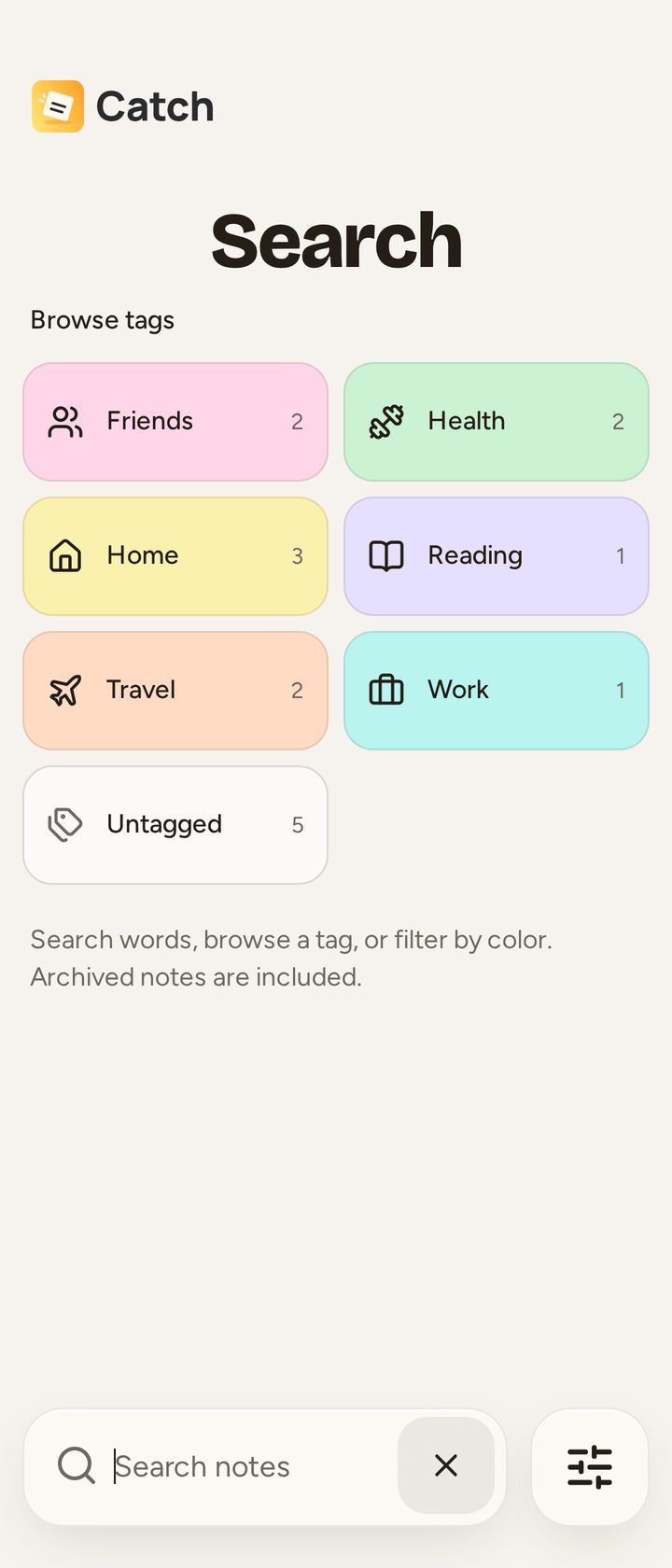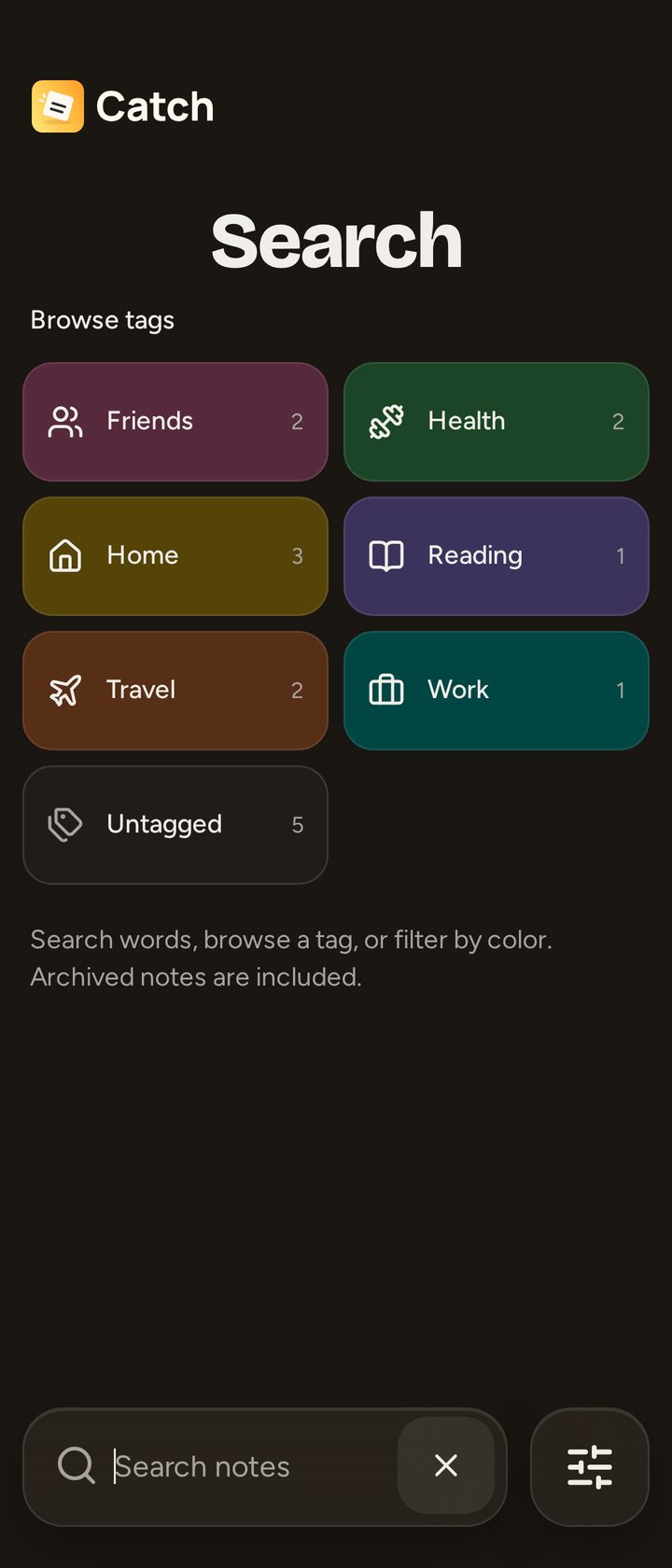

Search
Search text and combine tag and color filters.
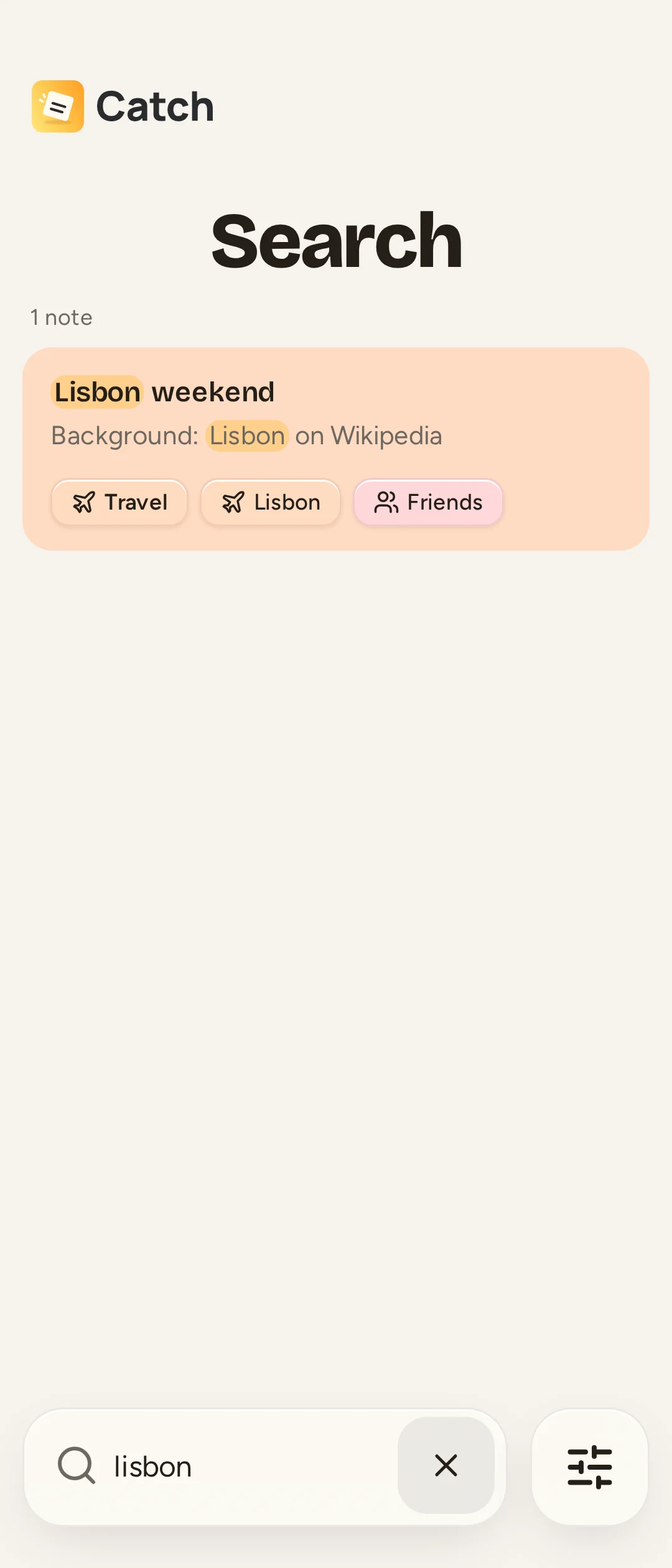
Select Search in the dock and type in Search notes. Every space-separated word must occur somewhere in the note's text, without regard to capitalization. Text on a note's first line is used as its title; title matches rank first, followed by recently edited notes.
Search reads the notes already synced to this device, even when you are online. It works offline over that local copy. It does not search inside attachment files, perform image text recognition, or offer semantic search.

Browse without typing
Search's starting view shows root tags with counts and Untagged. Choose a tag to browse notes assigned to it or any of its descendants, as primary or secondary tags. Untagged means no assigned tags; it is different from No color.
Combine filters
- Select Filter notes in the dock.
- Use the Colors or Tags tab.
- Select tags at any depth. With several tags selected, choose Any to match at least one or All to match all of them.
- Add text to narrow the results further.
Selecting a linked color selects its root tag and descendants, even if a matching note has another background. An unlinked color filters the note's displayed color. No color filters notes with the default background; a note can have secondary tags and still have no color.
Use a filter badge's removal control to remove one filter, or Clear filters for all filters. Show archived notes is on by default and is remembered on this device. Turn it off to exclude Archive; clearing filters does not reset it. Trash is always excluded.
Catch remembers recent text searches on the device. If a new device has incomplete results, reconnect and let its notes finish syncing.