

Attachments
Add media, manage attachments and prepare files for offline use.
Add a file or recording
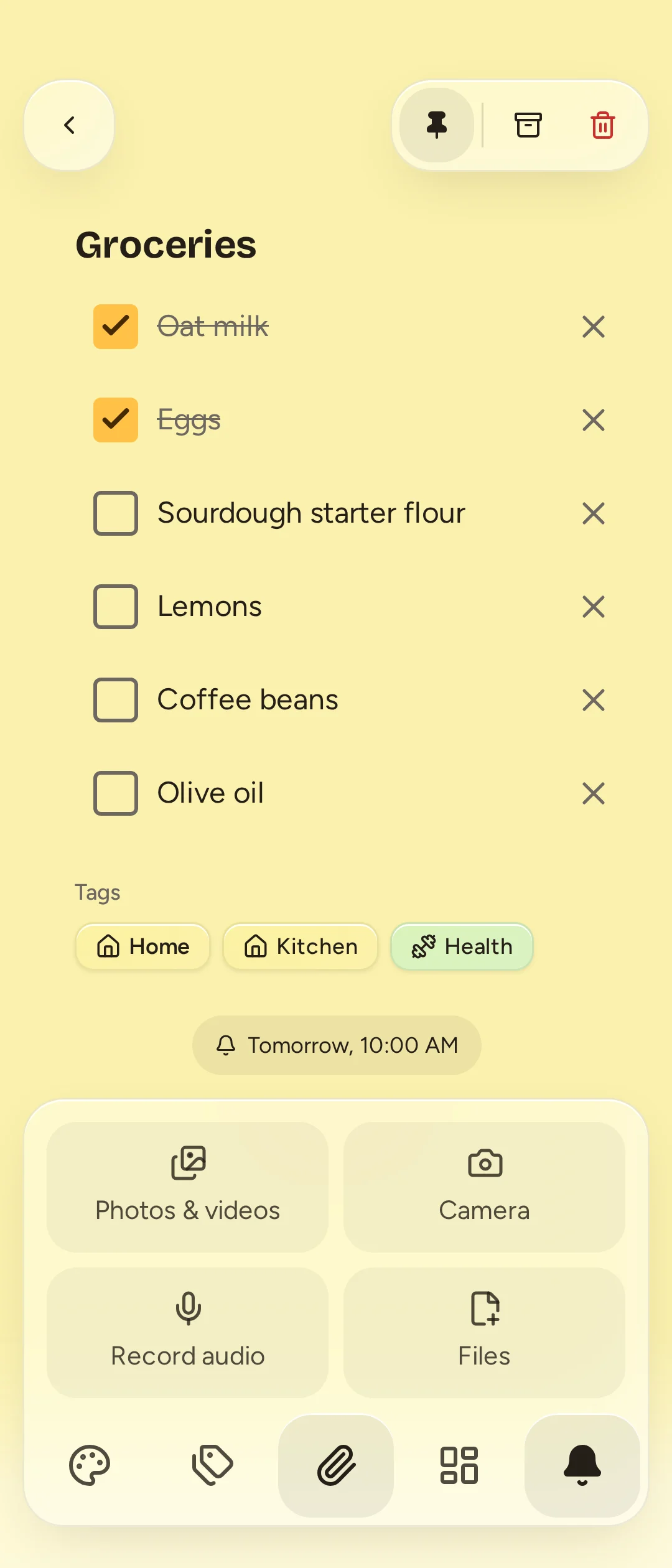
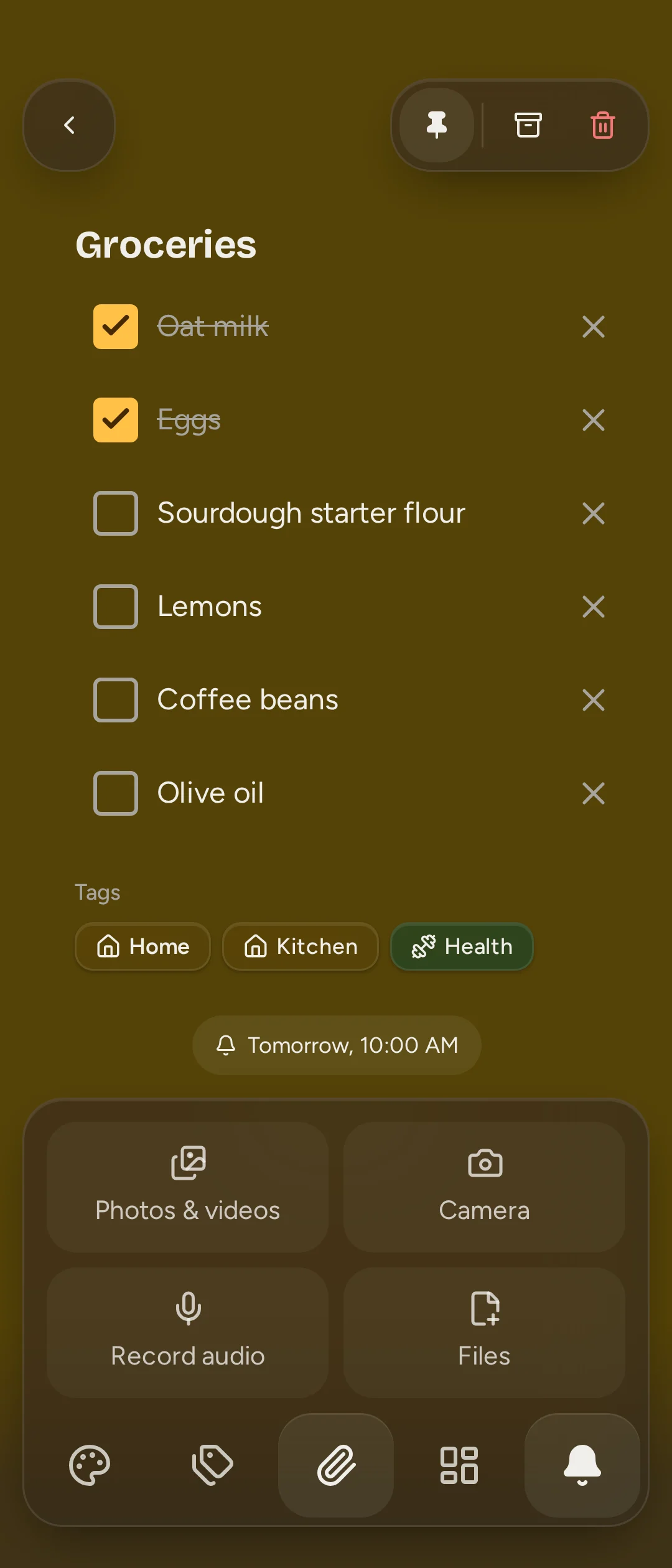
Open a note and select Attach files in its dock or formatting toolbar. Choose:
- Photos & videos to select existing media.
- Camera to take a photo or record a video.
- Record audio to make an audio attachment.
- Files to select other file types.
Allow camera or microphone access when you want to capture media. Browser capture needs a secure connection and browser support; a file selected through Files can still be attached if capture is unavailable.
Attachments appear in the note's Media section. When adding through the editor, Catch can also place a media block at the cursor. Tap a file to open the media viewer. Use Previous attachment and Next attachment to browse files in the viewer. Attachment details shows file information and Download / Keep offline actions. Images support zoom and pan; playback depends on the media formats your device supports.
Each file can be up to 100 MiB (the app's messages call this 100 MB). Empty files are refused. The server's default allowance is 10 GiB per account, shared across its notes; your administrator can change it.
Files added to vault notes and their filenames are encrypted on the device. Vault videos download in full before playing. A shared note's link lets readers access its files too; Note content sharing sends only text and filenames.
Manage a file
Use the file's Manage menu in Media:
- Download saves a copy through the device's download flow.
- Keep offline saves its original on this device.
- Show in note jumps to its existing media block; Add to note inserts one if it has none.
- Rename changes its displayed filename.
- Remove attachment deletes the attachment itself, including its inline placements. This action takes effect directly.
Deleting an inline block alone removes its placement, not the attachment. You can add it back from Media. Trashing a note keeps its files; deleting the note forever removes them. Making a copy of a note creates independent attachment copies.
Prepare for going offline
Selected files are stored on the device before their uploads are queued. They can be previewed offline and their pending uploads survive a restart. Waiting to upload means the original has not finished reaching the server.
Other devices download originals when needed. A cached thumbnail is not an offline copy of the full file. Before travelling, choose Keep offline for each original you need while still connected, and wait for Available offline.
Signing out clears the account's local files. A browser clearing its stored data can also remove them. Offline and updates explains protecting unsynced work.