

Gallery
Pin, sort, select, archive and delete notes.
Keep notes in the Gallery
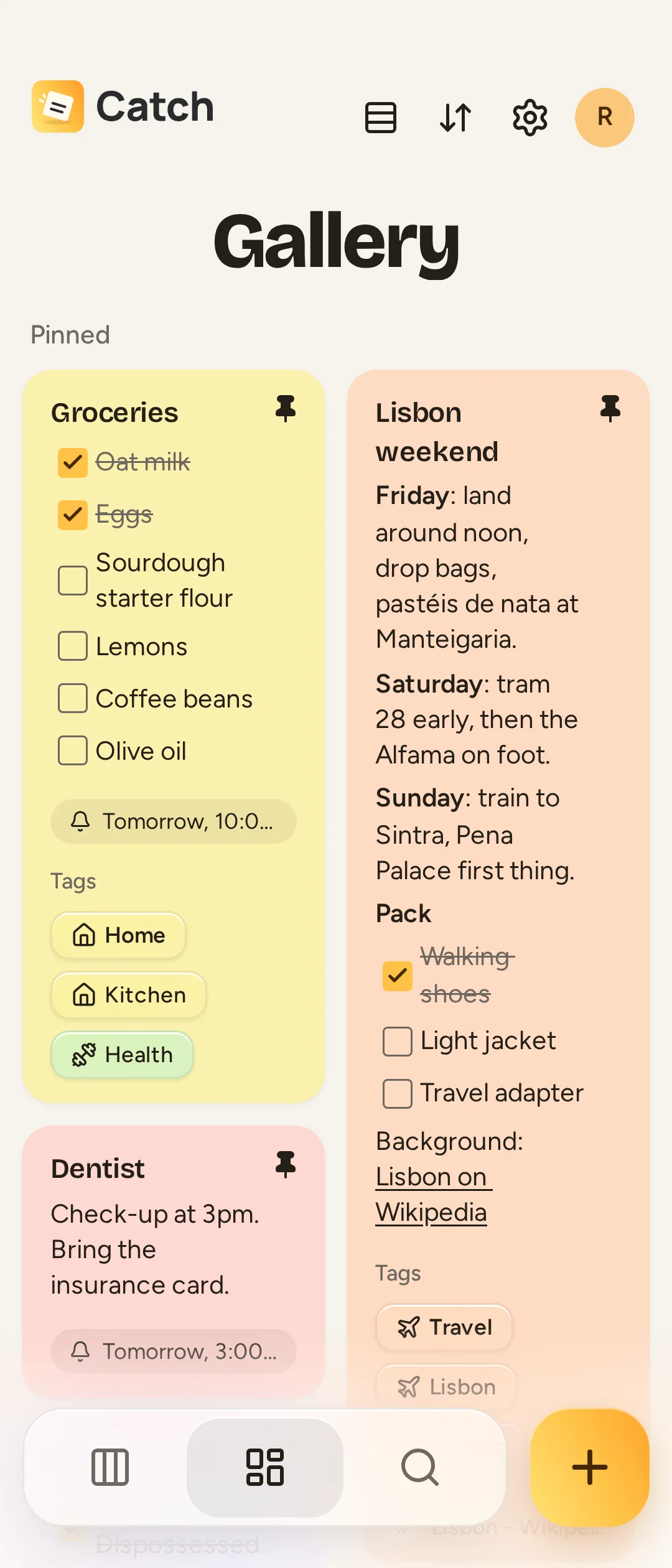
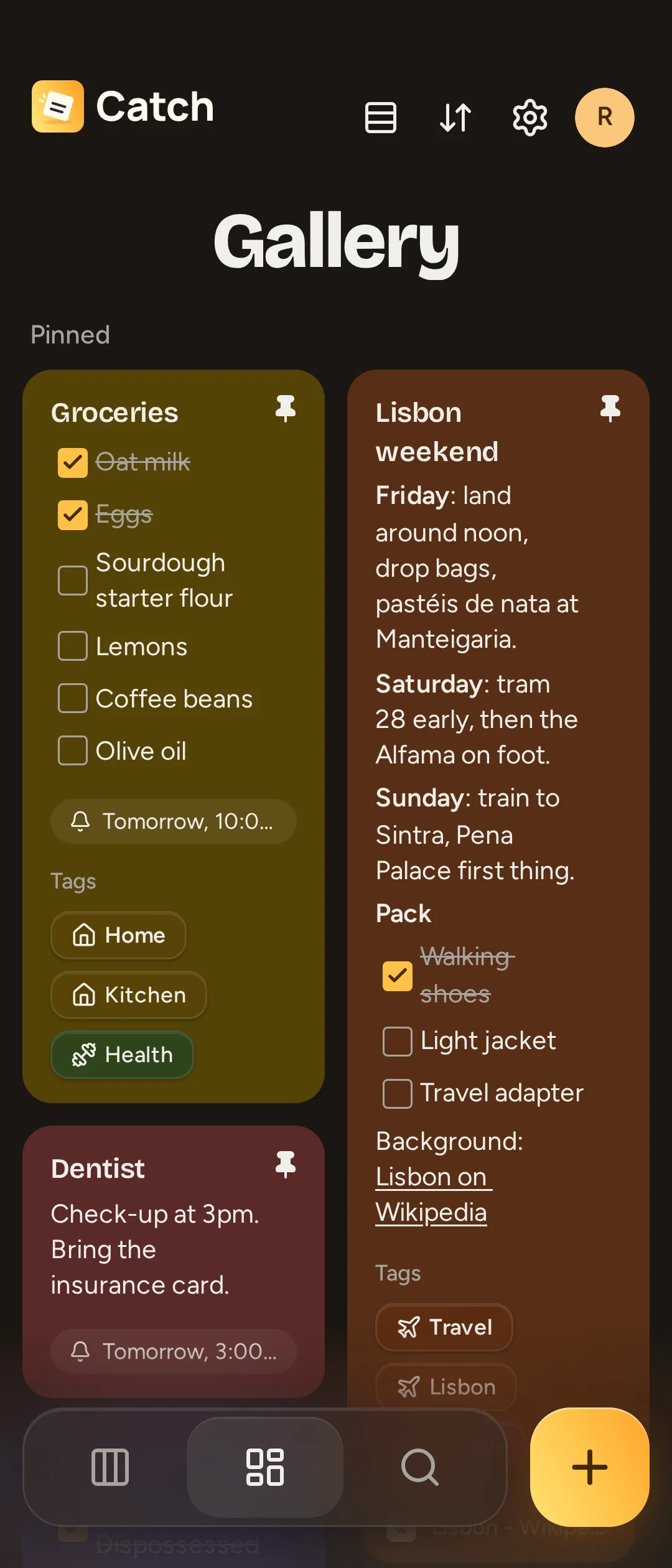
Gallery holds notes that are neither in the Deck, archived nor trashed. Pin a note with Pin to put it in Pinned, above Others. Unpin returns it to the ordinary group.
Open Sort to choose Custom, Last edited or Date created. Date sorts offer Newest first and Oldest first. Custom lets you drag notes into your own order. On touch, hold a card before dragging it; releasing the hold without dragging selects it instead. Pinned and unpinned groups remain separate.
At narrow widths, Switch to single column view and Switch to masonry view change how cards are arranged. This layout choice is remembered on the device. Wider galleries use the masonry layout.
Select several notes
Hold a note to select it, or use its selection checkbox with a mouse. Tap other notes to add or remove them. While selecting, tapping a card changes the selection instead of opening it.
Actions appear in the page header. Depending on the page, you can Pin, change Background color, apply Tags, Archive, Move to trash, Make a copy, Restore, Delete forever, or Send to gallery from the Deck. Close the selection or press back or Escape to return to normal browsing.
Archive notes you want to keep
Choose Archive on an open note or a selected group. A Gallery card can also be swiped sideways to archive it. Archive keeps the note and its files but removes it from the Gallery or Deck.
To find it, return to Gallery and tap the Gallery dock tab again, then select Archive. Open the note and choose Unarchive, or unarchive selected notes. A note returns to its Gallery or Deck destination. Search includes archived notes by default.
Move notes to Trash
Choose Move to trash. Catch offers Undo after trashing. To find trashed notes, use the Gallery dock tab's page choices and select Trash.
Trashed notes keep their attachments. They are read-only until you choose Restore. They are excluded from search. Catch does not automatically empty Trash after a fixed number of days.
Delete forever permanently removes a note and its attachments. Empty trash removes every note currently in Trash after confirmation. Ordinary editing undo cannot recover a permanently deleted note; an administrator's server restore affects the whole server, not just that note.