Offline and updates
Keep working without a connection and understand app and server update messages.
Prepare this device
Sign in online and let your notes sync at least once. Use the released browser app or Android app and keep its local storage. The browser app caches its code for reopening offline; your browser must support and retain the storage it uses. If local note storage cannot open, Catch falls back to memory and cannot promise notes will survive a reload.
Use Keep offline for attachment originals you need. Merely seeing their thumbnails does not mean the full files are stored here.
A local copy is not a server backup
Signing out deletes that account's local notes, queued changes and files. Clearing browser/app data or uninstalling an app can remove them too. Sync pending changes before doing any of these things. Catch warns before signing out with changes waiting.
What works offline
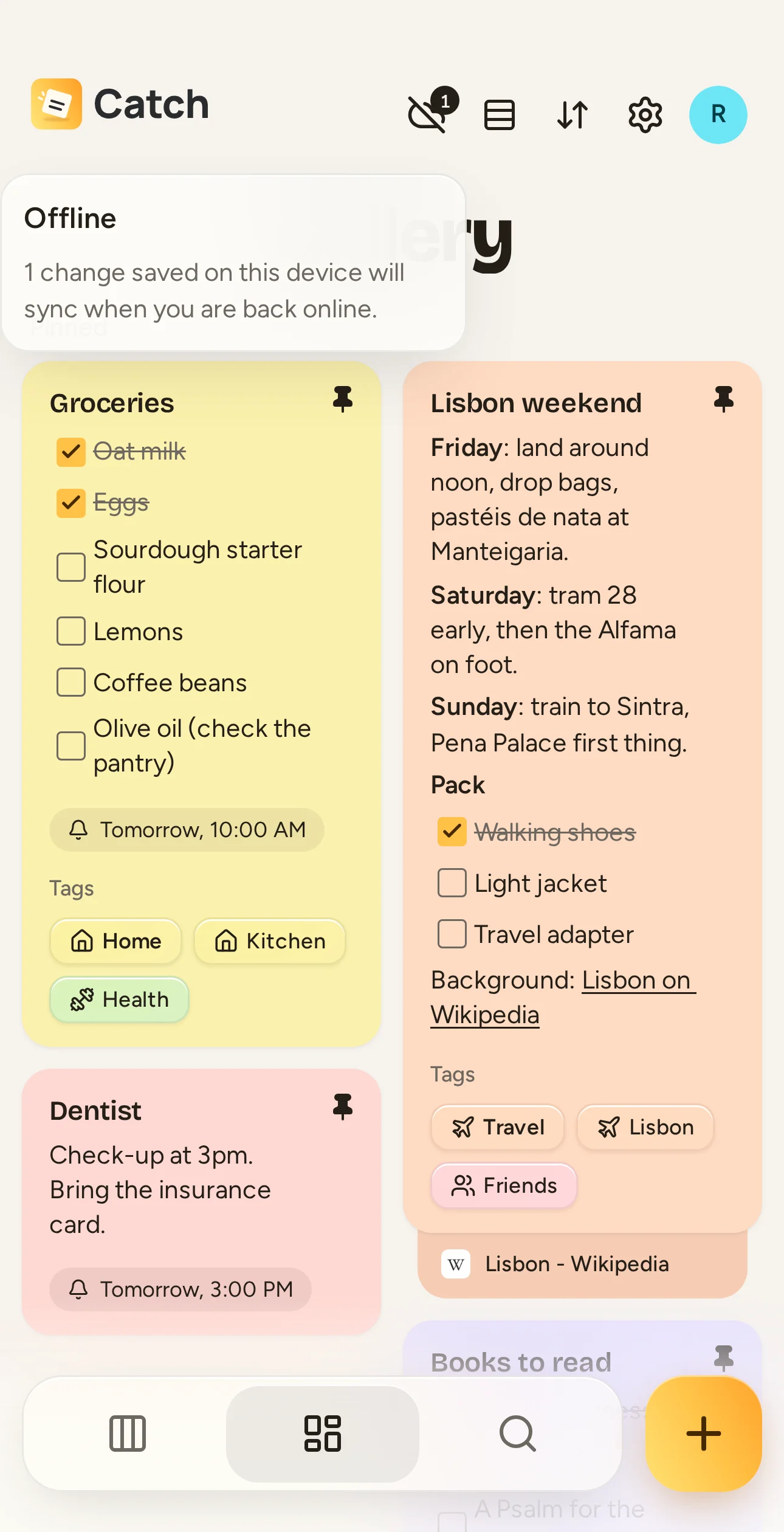
You can read locally stored notes, write and edit notes, organize them with colors and tags, move them in the Gallery or Deck, archive or trash them, search the local copy, set reminders and add files. Changes wait on this device until the server is reachable and accepts them.
You cannot sign in for the first time, fetch a new attachment original or page preview, manage users or server backups, or start the Keep import before the notes and attachment catalog have synced. Native Android alarms already received by the phone can ring offline. Browser reminder delivery depends on the server.
Only one tab per account owns its offline queue. If Catch says Catch is open in another tab, and only that tab can save changes offline, work in that other tab or close it and let this one take over. Writes in a secondary tab can fail and roll back without a connection.
The vault also works offline after it has synced here. Vault setup, password changes/recovery and deletion need a connection. You can create or stop a sharing link offline, but readers see the change only after it reaches the server.
Understand queued changes
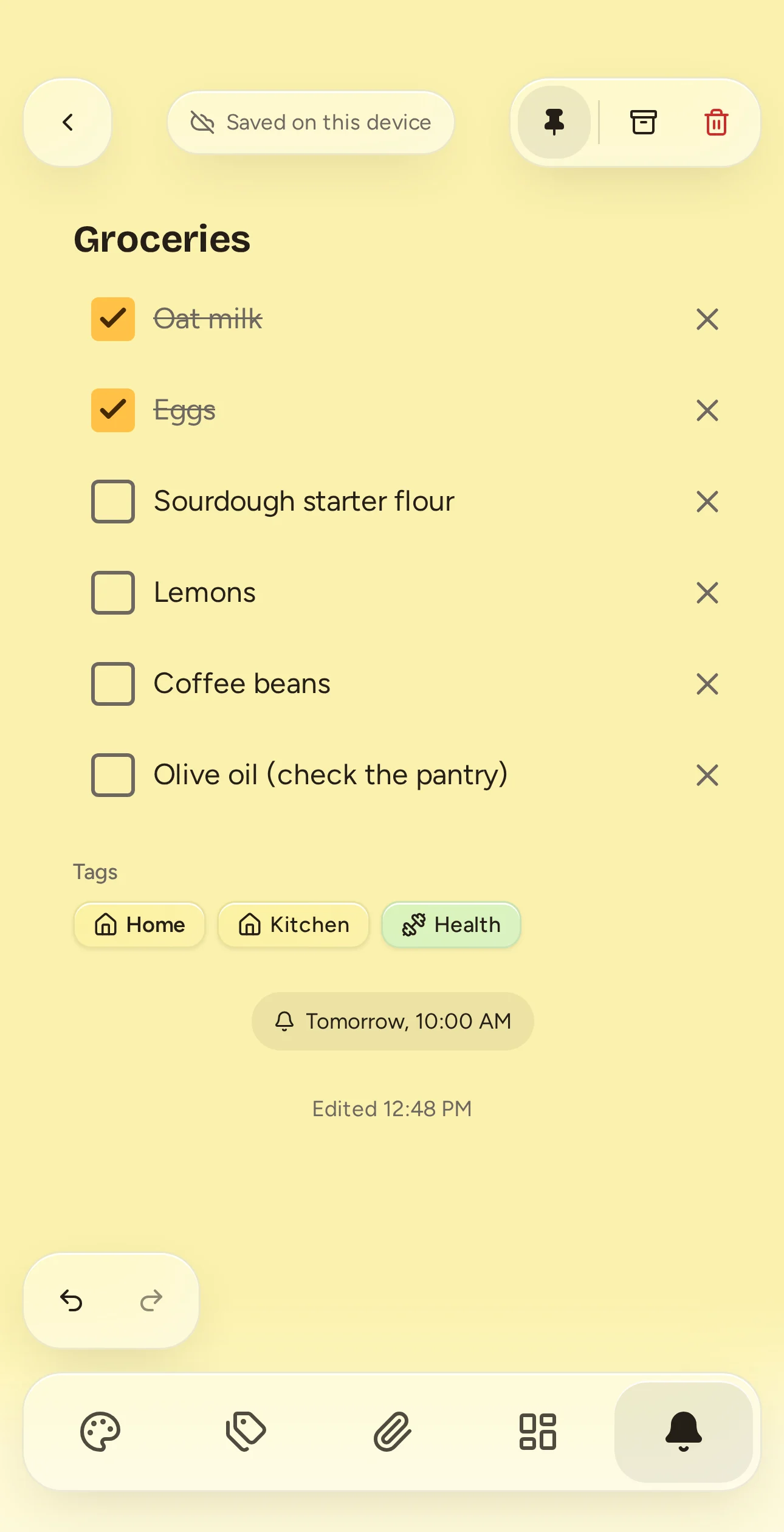
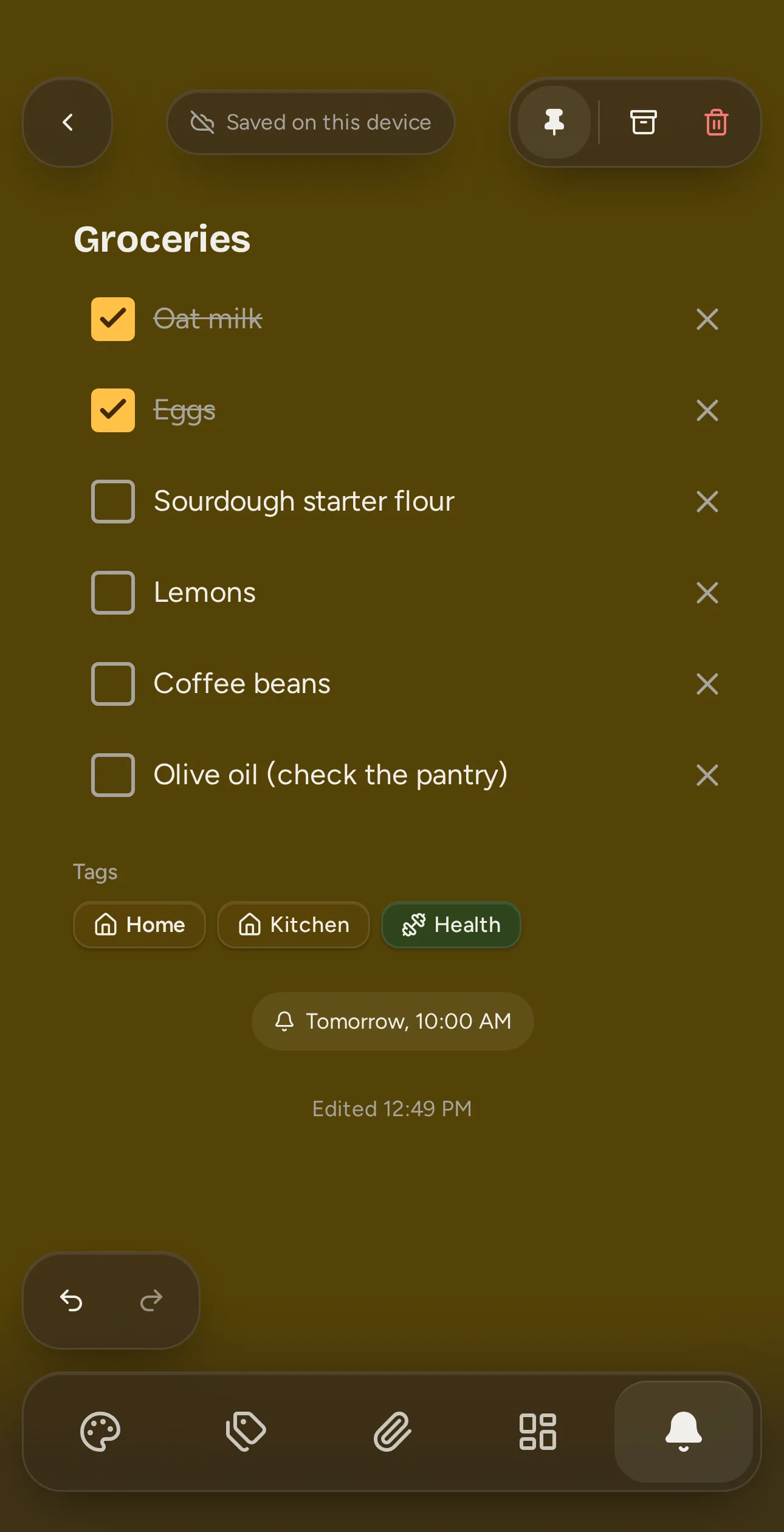
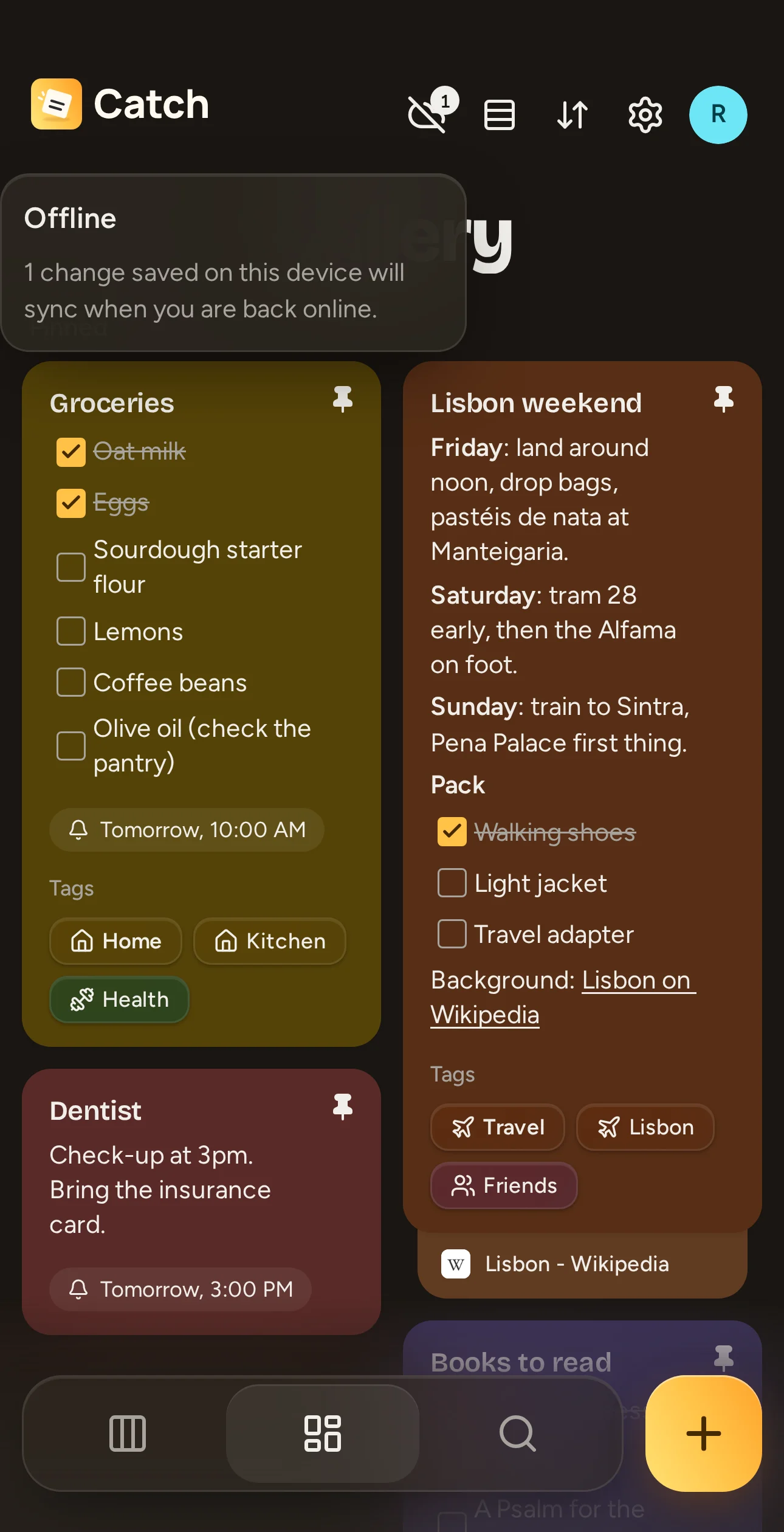
The cloud control in a page header explains why sync stopped and shows how many changes are waiting. The editor says Saved on this device when it has stored changes locally.
Catch sends queued changes in order when it reconnects. Temporary network/server failures and rate limits retry. A refused change, such as an invalid edit or a quota failure, can be rolled back and reported as unsaved; it is not guaranteed to retry forever. Read errors rather than treating every failure as offline work.
If the control says Signed out, use its Sign in action and sign in as the same account. This recovery action keeps the local copy and queue. It differs from choosing Sign out in Account settings, which deletes them.
With several accounts on a device, only accounts open in a tab sync. Switch back to an account with queued work to let it send.
Avoid conflicting edits
Edits to different note fields can both survive. If two devices change the same field, the last change to reach the server wins. The note's text is one field: an offline text edit sent later can replace text another device saved while you were away. There is no merge editor or saved revision history.
A vault note is encrypted as a whole: a later write replaces the entire note, including its organization, rather than merging different fields.
Let a note sync before editing its text on another device. For offline edits, Last edited reflects when the server applies the change, not necessarily when you typed it.
Use Settings > Update
Check for updates refreshes the app's view of the server and compatibility. Server version identifies the running server; Android also shows App version. Recent releases are from the server's channel.
A different release number alone does not mean sync is broken. Catch checks a data protocol separately. When that protocol is incompatible, it pauses sync and keeps local notes and queued changes:
- App update required: update this device's app. In a browser, use Reload to update. On Android, install the matching released app.
- Server update required: ask your administrator to update the server. Reinstalling your app or clearing data does not solve this.
Compatibility is rechecked on launch, return to the app, reconnection and periodically. Once compatible, sync resumes.
Update the browser app
A prompt offers Reload to update or Later. If an update is required for sync, it offers Keep working offline while you wait. You can return to Settings > Update after dismissing the prompt.
Close the open note or draft before reloading. Catch waits for saves to reach its local queue or the server, prepares the new app code and reloads while keeping saved local notes and queued changes. If preparation fails, keep the current app open, reconnect and retry. Other tabs choose when to reload independently.
Update Android
When a newer app in the same channel matches your server's published version, Settings offers Update to [version]. Catch downloads the APK, verifies it and opens Android's installer. Confirm installation; Android may first ask you to let Catch install updates.
The updater follows the server's exact version rather than installing every new GitHub release. It does not change channels or downgrade the installed app. If channels differ, install the separate matching app from GitHub releases. Keep the original app until its pending work has synced.