
Reminders
Choose times, repeats and notifications on each device.
Set a reminder on a note
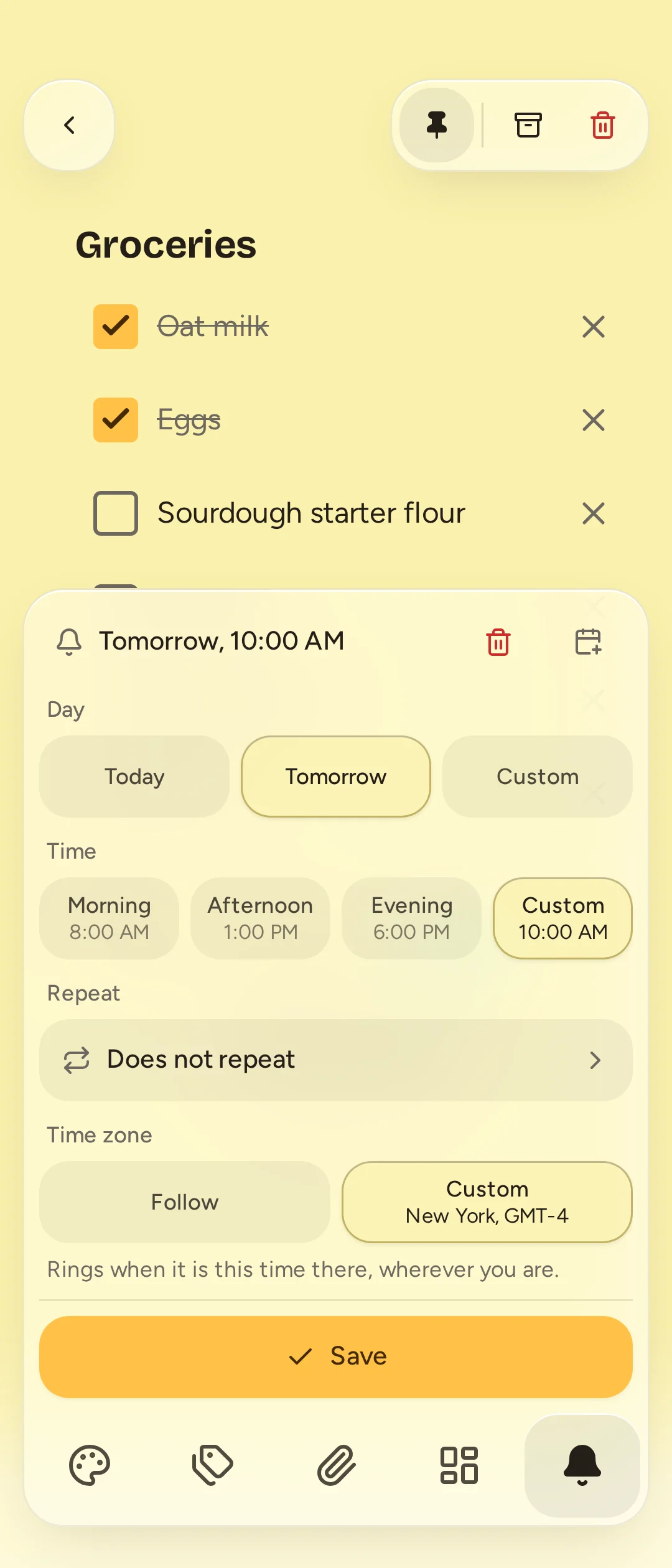
- Open the note and select Reminder in the dock.
- Choose Today, Tomorrow or a Custom day.
- Choose Morning, Afternoon, Evening or a Custom time.
- Adjust Repeat and Time zone if needed, then select Save.
A note has one reminder. Open the bell or reminder chip again to edit it; Remove reminder deletes it. Setting a reminder does not change the note's last-edited time. Trashed notes do not ring.
Use the Gallery dock tab's choices to open Reminders, which separates upcoming reminders from Past ones. A recurring reminder moves to its next occurrence when it rings, without waiting for you to acknowledge it.
Repeat and choose a time zone
Repeat offers daily, weekly, monthly and yearly schedules with an interval. Weekly repeats can use selected weekdays. Monthly repeats can use a date or a weekday such as the last Monday. You can end a repeat on a date or after a number of occurrences.
A monthly date beyond the end of a shorter month falls on that month's last day. Times skipped by a clock change move forward by that change; a time that occurs twice rings once, at the first occurrence. Missed repeat occurrences are skipped rather than all delivered in a burst.
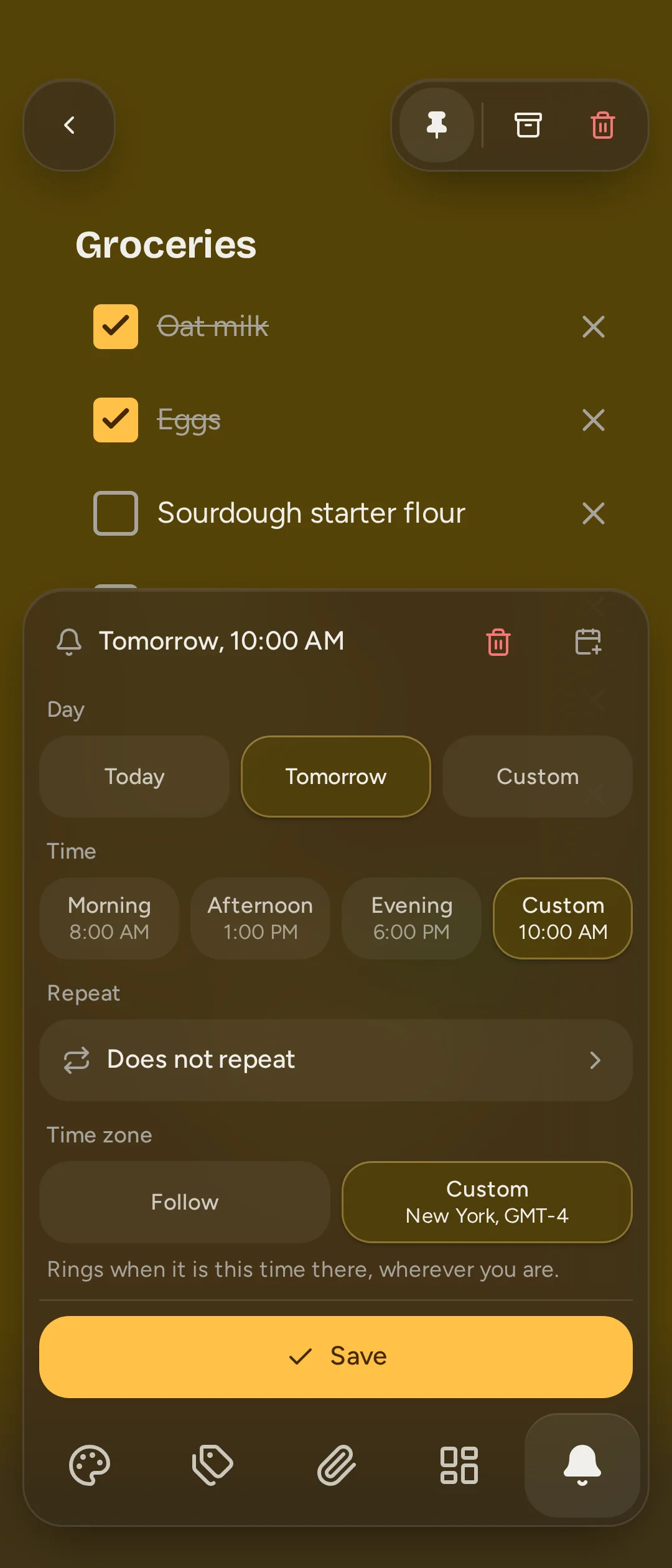
Follow uses your local clock as you travel: 9:00 stays 9:00 where you are. Custom fixes the reminder to a selected time zone, for example 9:00 in London wherever you are.
Add to Google Calendar opens Google's new-event form with the note's first text line and a link back to Catch. It does not copy the reminder's date, time or repeat, and there is no ongoing calendar sync. You finish and save the event in Google Calendar yourself.
Turn on notifications
On each device, open Settings > Notifications, enable Reminder notifications and allow the permission request. Use Test > Send to check delivery. If blocked, allow notifications in the browser's site settings or Android's app settings, then enable them in Catch again.
On iPhone or iPad, open Catch from its Home Screen icon before enabling notifications. If the browser cannot receive them, Settings explains that limitation.
Browser notifications are sent by your server through your browser's push service, encrypted to your device. They need the server and its internet connection. A browser cannot ring Catch reminders locally while the server is unavailable.
The native Android app rings reminders locally, including offline and while closed, once it has received them. Reminders made on another device need to reach the phone first. A background check tries to refresh them, but Android controls when it runs; battery saving can delay it. Open Catch online to make sure the phone has the latest reminders.
Vault reminders
Vault notes can have reminders too. Their notifications say Vault note without the note's text. Opening one enters the vault and asks for its password if locked. The server knows when the reminder is due, but cannot read its note.
Snooze and adjust quick times
Snooze from a reminder's controls in Catch. Native Android notifications also offer Snooze and Done. Done dismisses the notification; it does not delete the reminder or complete its note.
In Settings > Notifications, choose a snooze length of 15 minutes, 30 minutes (the default) or one hour. Set Morning, Afternoon and Evening under Quick times. These preferences apply across your devices; changing a quick time does not rewrite existing reminders.
An Android notification snooze reaches the server and other devices when you next use that account in Catch. Each enabled device rings separately. Notifications apply to all accounts signed in on a device, not only the one currently open, and dismissing on one device does not dismiss on the others.