

Installation and sign-in
Use a browser, install the web app, or connect the Android app to your server.
Open Catch in a browser
Open your server's address, such as https://notes.example.com. This is the address supplied by your administrator, not catchnotes.site.
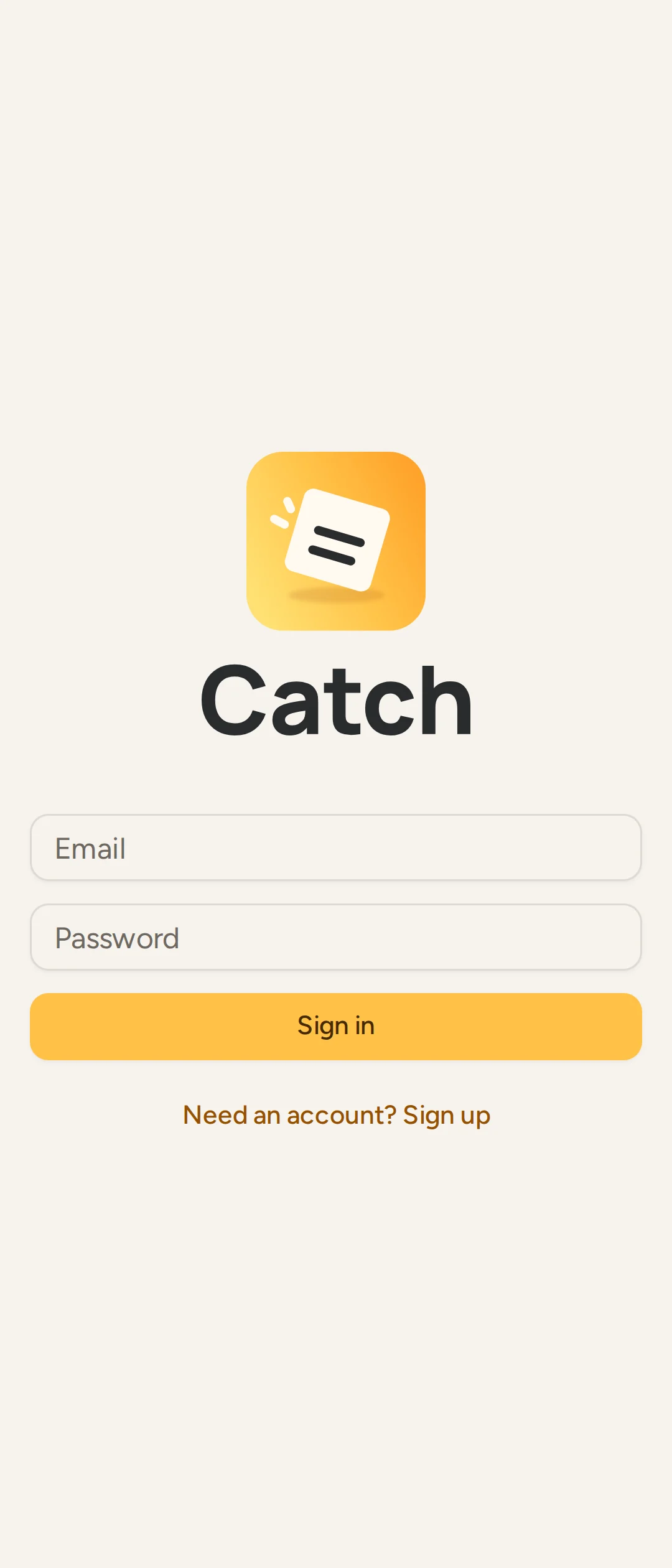
Enter Email and Password, then select Sign in. You need a connection for a new sign-in. Before going offline for the first time, let your notes sync on this device.
Make an account with an invite
Open the whole invite link your administrator sent. Catch opens the account form. Enter your name, email and a password of at least eight characters, then select Create account.
If you opened the server without the link, select Need an account? Sign up and paste it into Invite link, if you were sent one. Keep the end of the link, including its #invite= part.
An invite works for one account and expires after seven days. Ask for another if it has expired, been used or been removed. Most servers close sign-up after their first account; seeing the sign-up form does not mean you can join without an invite.
Install the web app
You can keep using Catch in a browser tab. Installing it adds an app icon and a separate app window; it still uses your server and account.
Open your server in a browser that supports installing web apps and use its install or Home Screen option. In Chrome on a computer, use Install in the address bar when offered; Chrome's web app guide covers its current menus. On iPhone and iPad, use Share > Add to Home Screen, then open Catch from that icon to enable reminder notifications.
Browser support still needs a published test matrix
The repository does not establish minimum supported browser versions for every feature. Installation, local storage, recording and notifications depend on your browser. If an option is missing, try an up-to-date browser and read the message in Catch's Notifications settings.
Install the Android app
Download the .apk asset from Catch's GitHub releases. Choose a published release in the same channel as your server; your administrator can tell you which one. The release also provides a .sha256 checksum file.
Open the downloaded APK and confirm installation. Android may ask you to allow the browser or file app you downloaded it with to install apps. Permission wording depends on your phone. The project sets Android's minimum SDK to 24; there is no complete device compatibility list in the repository.
On first launch:
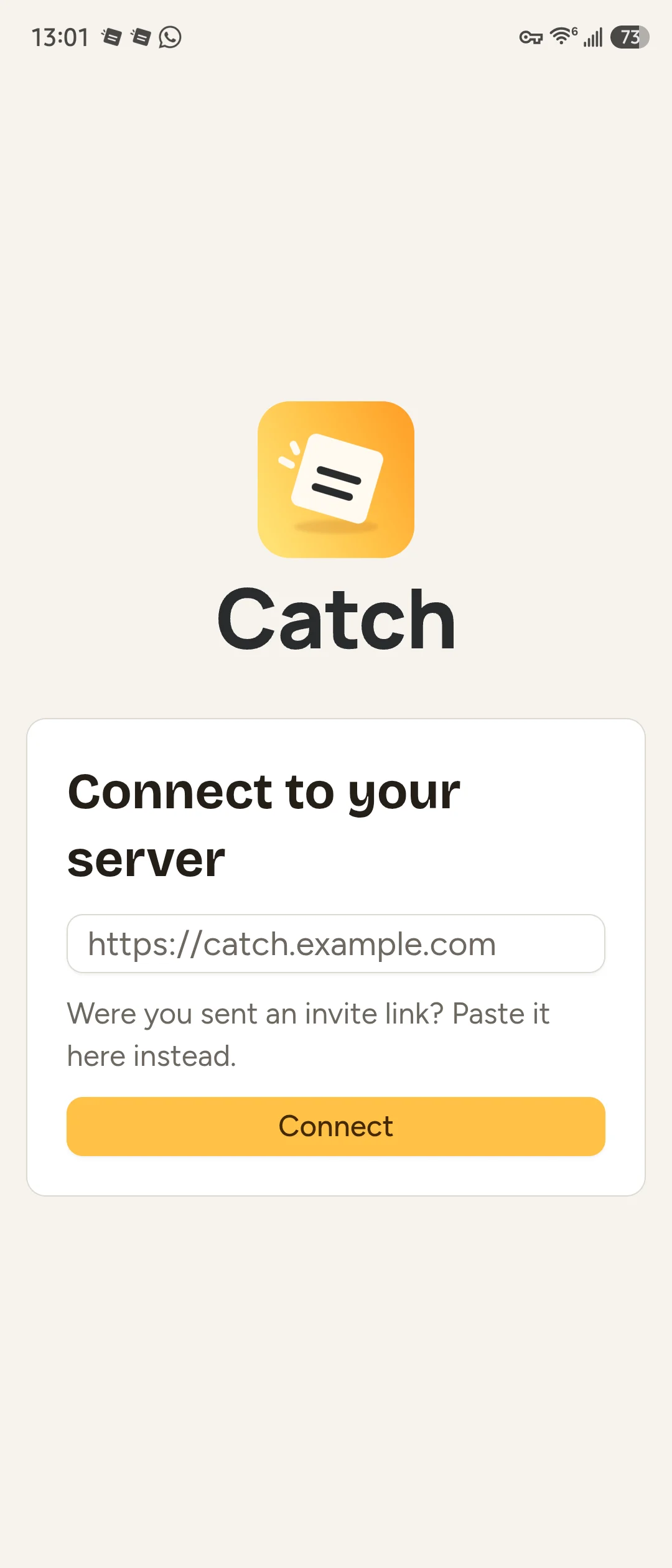
- In Connect to your server, enter the HTTPS address in Server URL. You can paste your whole invite link instead.
- Select Connect.
- Sign in, or complete the account form if you used an invite.
Released Android apps require HTTPS. A plain http:// address used for local development is not a production setup.
Choose stable or preview
Catch is the stable Android app. Catch Preview is the preview app. They can be installed together and keep separate local data. Preview is a separate release channel for trying upcoming releases; it is not an extra feature you turn on in stable.
Use the channel your administrator supports. Installing the other app does not move unsynced changes from the first one. Each app needs its own connection and sign-in. The browser app comes from the server you open, so its channel follows that server.
Offline and updates explains how to update without losing queued changes. Catch Dev is for development and does not receive release updates.