

Users and invites
Create the first account and manage people on your server.
Claim the first account
Keep the new server restricted while you open its address. Select Need an account? Sign up, enter your details and choose Create account. The first account becomes an administrator. Catch does not generate a default production username or password.
With REGISTRATION=closed, later accounts need an invite. The first account can always be created even when registration is closed, so restricting access before you claim it matters.
Invite someone
Open Settings > Admin > Users. Under Invites, optionally enter who the invite is for, then select Create invite. Use Copy link and send it securely before closing the dialog; the full link is shown only there.
Each link allows one account and lasts seven days. It is not bound to an email address: whoever has it can use it. The label is for your reference. The list shows waiting, expired and used invites, including which account used one. Remove invite revokes an unused link; removing a used invite does not delete its account.
The recipient opens the entire link in a browser. In the Android app, they paste it into Connect to your server, or into the sign-up form's invite field. Tell them to preserve its #invite= fragment.
If you deliberately want public sign-up, set REGISTRATION=open and run docker compose up -d --wait. Any person who can reach the server can then create an account. An invalid invite supplied with sign-up is still refused even when registration is open.
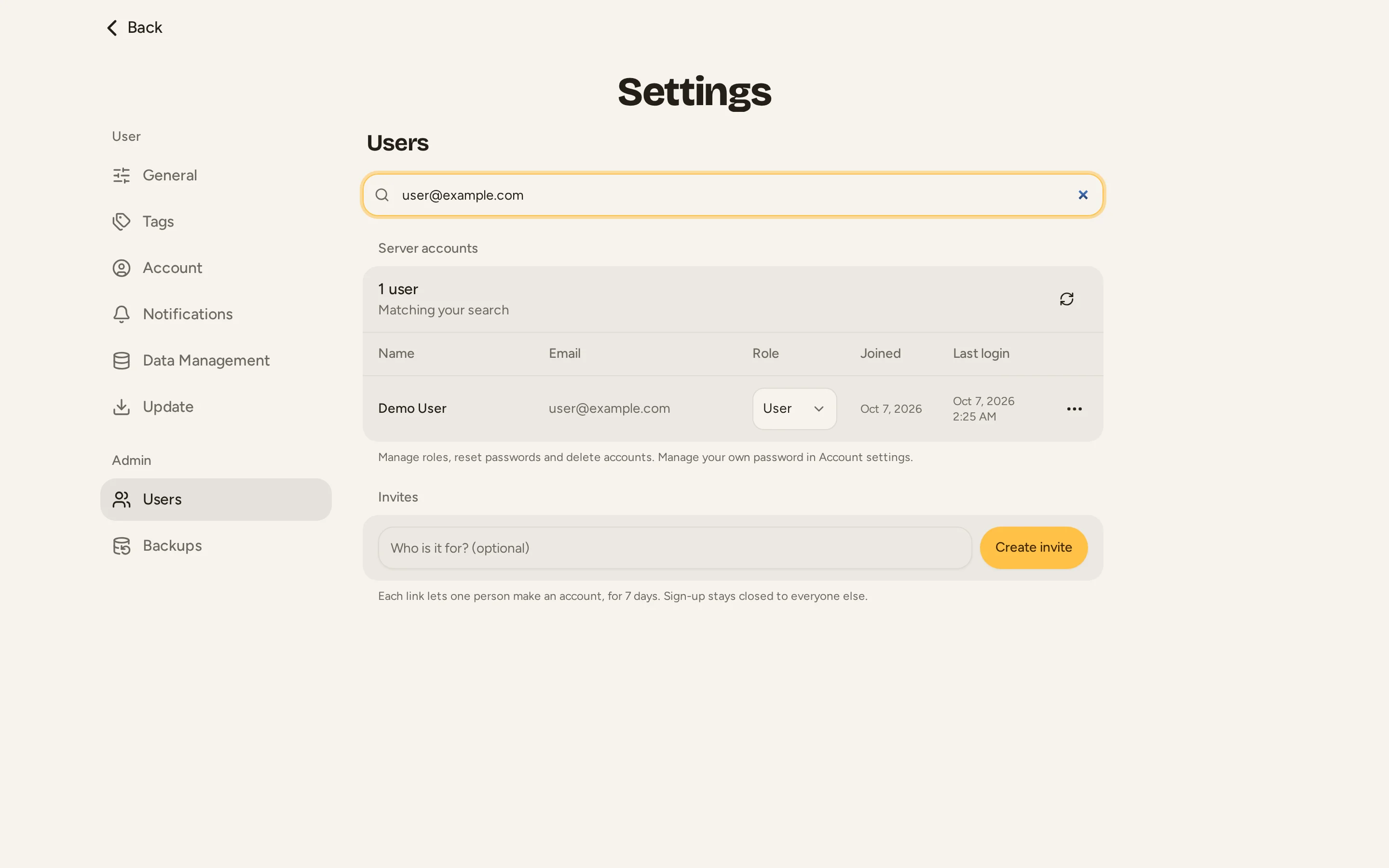
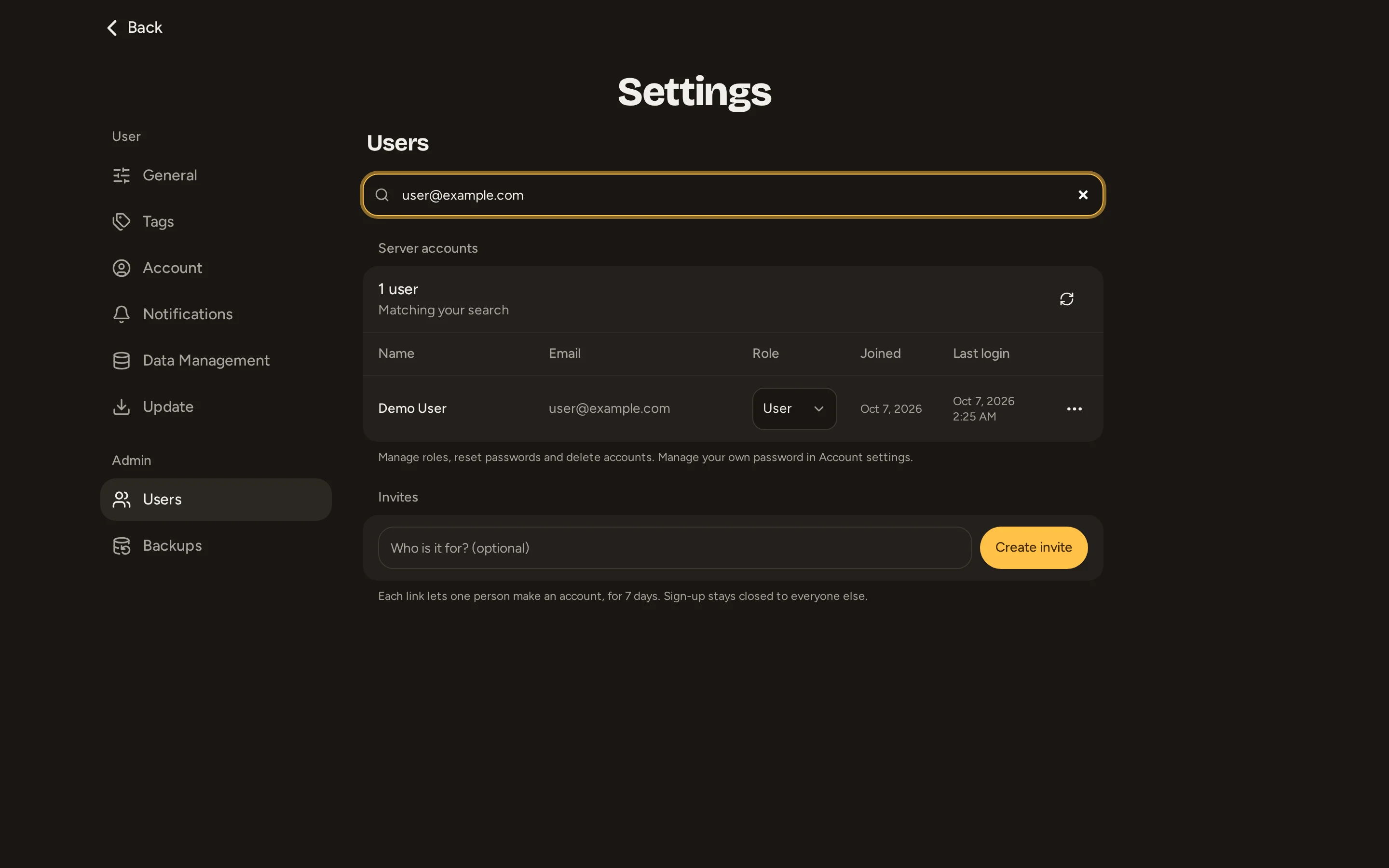
Manage users
The Users page searches by name or email and lists names, email addresses, roles, creation dates and last login. A missing recorded login appears as —. The last-login value reflects successful sign-ins, not continuous activity or session refreshes.
Use the role menu to promote another account to Admin or return it to User. Admins can manage users, invites and whole-server backups. The app does not provide a view of other users' notes, but backups contain everyone's data and administrators can download them.
You cannot change your own role or delete yourself through these controls. Promote another trusted administrator before relying on them to manage your account.
Reset a forgotten password
Use the person's action menu, select Reset password and confirm. Catch generates a temporary password and signs that person out of all devices. Copy the password before closing its dialog and give it to them securely. It is not emailed and does not expire automatically.
They sign in and replace it in Settings > Account > Change password. For your own password, use Account settings; admin reset controls are disabled for your own account.
Recovery without an admin session is not documented
The repository does not provide an operator command or established procedure to regain access if every admin password/session is lost. Arrange a second trusted admin and tested backups in advance. Do not assume changing BETTER_AUTH_SECRET resets a password.
Delete an account
Select Delete user and confirm the named account. This permanently removes its credentials, sessions, notes and attachment files. It is not a suspension or a reversible role change. Existing backups and copies downloaded outside the server can still contain that person's data.
User management and Admin > Backups require a live admin session and server connection. Hiding the controls is not the only protection: the API checks the current role on administrative requests too. See Backups for the other Admin settings page.