

Restore and recovery
Restore all users, move servers or recover from a failed update.
A restore replaces the whole server
Every account's notes, passwords and settings return to the backup. Changes on the server since that backup are lost. This is not a way to restore one user's note in isolation. Devices holding unsent changes can later send them again; coordinate the recovery with users.
Restore on the current version
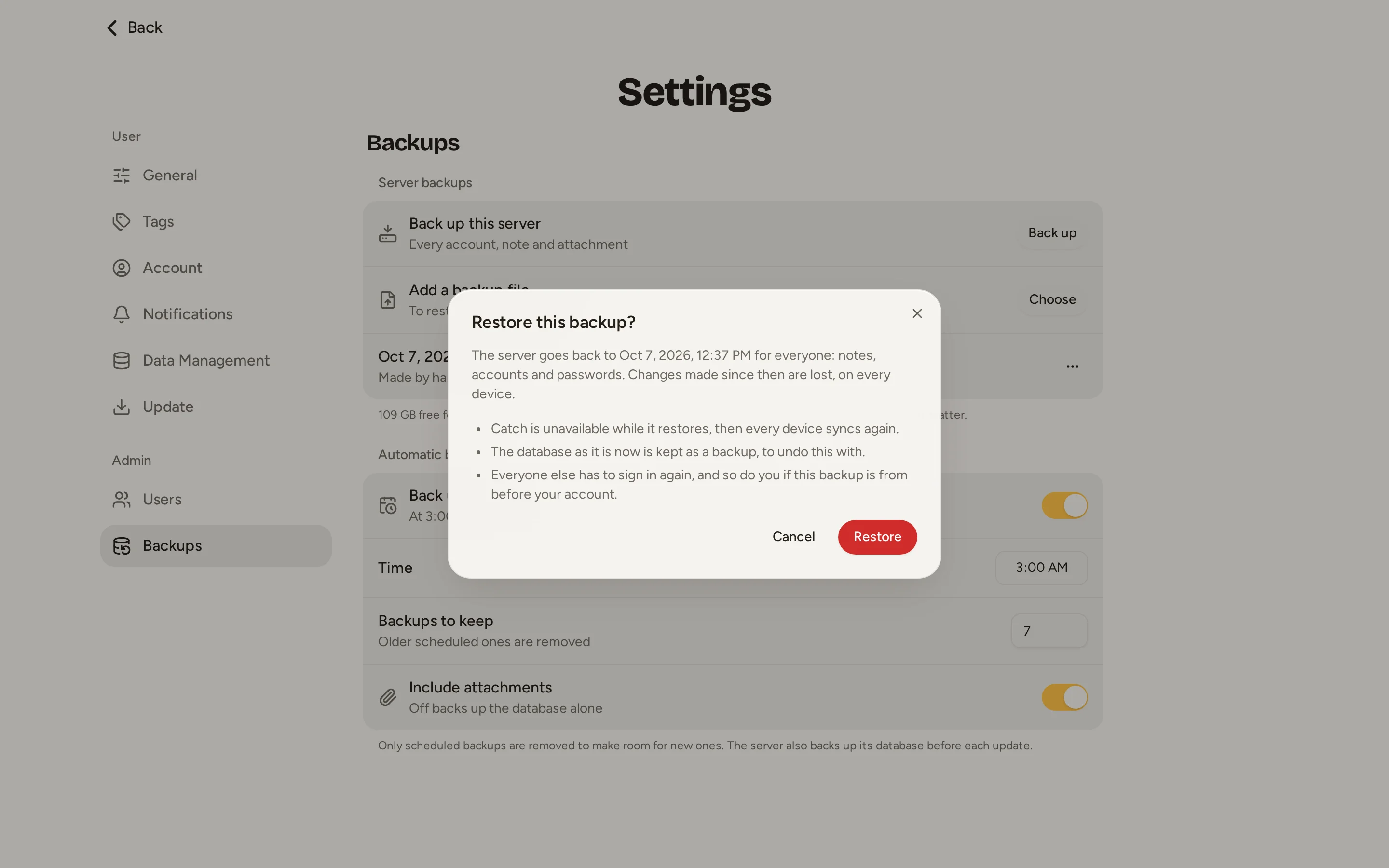
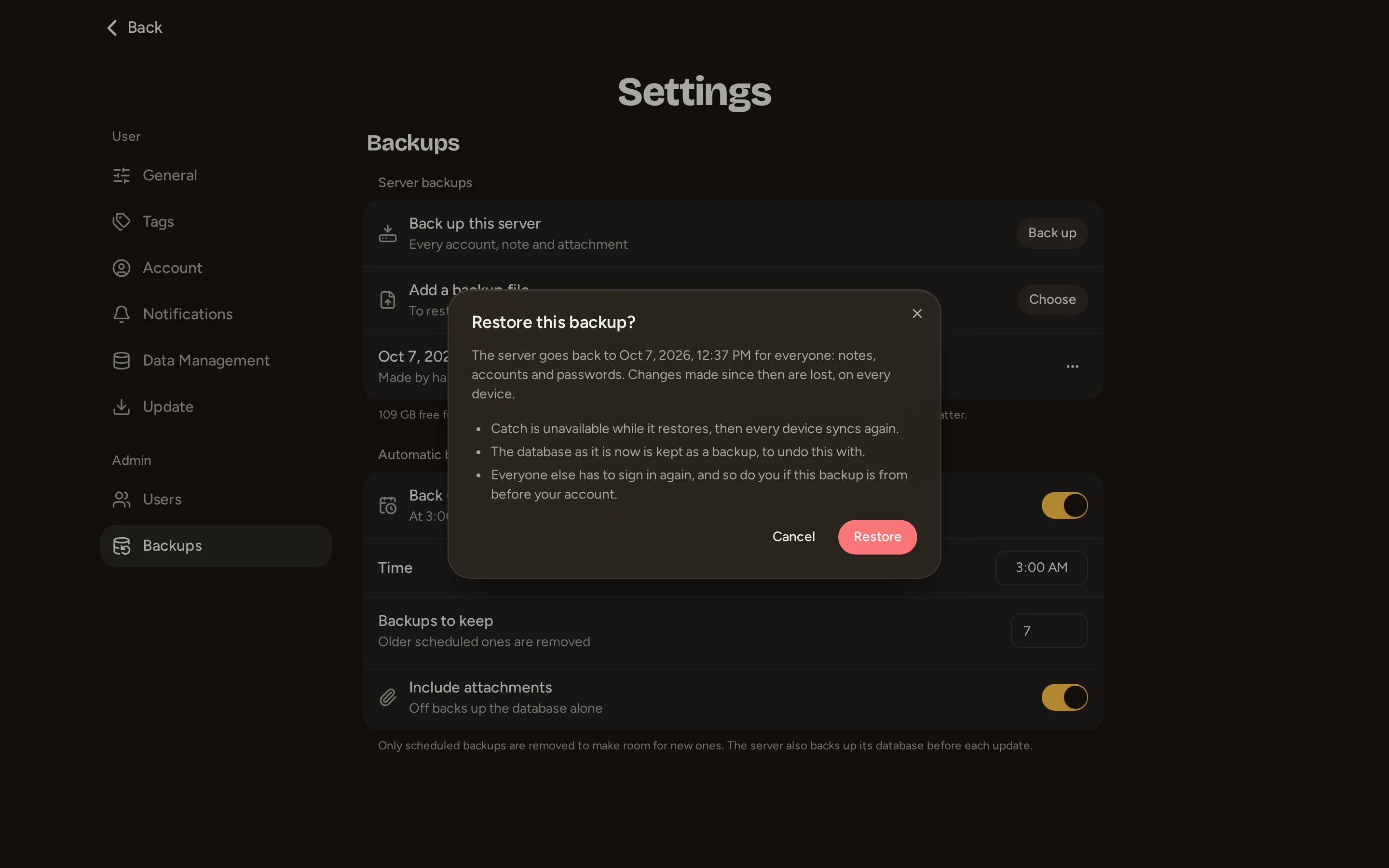
In Settings > Admin > Backups, add the ZIP if needed, select its Restore action and confirm. Or use the host helper with a name from list or a file on the host:
./backup.sh list
./backup.sh inspect BACKUP_NAME.zip
./backup.sh restore BACKUP_NAME.zip
# Alternatively, import and restore a ZIP from this host:
./backup.sh restore ./offsite-copy.zip
The host helper stops the app while replacing data, then restarts and waits for health. It can run when Catch's normal server cannot start. It asks for confirmation; use -y only for a deliberate unattended restore.
Catch checks the backup and refuses damaged contents, backups made with unknown newer migrations, or a live database migrated beyond the running image's knowledge. It saves the existing database as a database-only pre-restore backup, adds missing attachment originals from the ZIP and replaces live database data in a transaction. It never removes attachment files as part of restore.
For an in-app restore, ordinary API requests return 503 while it runs; clients wait and retry. Devices sync again afterwards. Sessions are not restored. The admin who initiated an in-app restore stays signed in if their account exists in the backup; others sign in again. A host restore does not preserve an initiating web session.
Older backups are migrated forward to the current schema. If you restore a database-only backup, the files already on this server remain; it cannot recreate missing originals. The result reports missing attachment files. A pre-restore backup can undo database changes, but is not an independent full attachment backup.
Recover after a bad update without downgrading
If the new app still runs and accepts the pre-update backup, you can restore that database-only update backup on the new version. Catch migrates its data forward again. This can recover data problems but does not undo the new code or its migration logic.
If the running image cannot start, use the host helper. Inspect app logs first and fix a correctable configuration, permission or disk-space problem before replacing data.
Return to the previous image and database
An older image cannot safely use a database a newer image migrated. Returning to the old image therefore requires both a pre-update database backup and a fresh database volume. Attachment and backup volumes must be preserved.
Before proceeding, export the pre-update backup off the server, record the previous exact image, retain any useful full backup and identify the actual volumes belonging to this deployment. These commands inspect mounts while containers still exist:
docker inspect "$(docker compose ps -q postgres)" --format '{{json .Mounts}}'
docker inspect "$(docker compose ps -q electric)" --format '{{json .Mounts}}'
docker inspect "$(docker compose ps -q app)" --format '{{json .Mounts}}'
The next step removes the current database
Use only the exact Postgres and Electric named volumes you verified above. Do not remove the attachment or backup volumes, and do not use down -v. This example assumes the supplied named-volume layout; bind mounts or external databases need their own recovery procedure.
Stop the deployment, then explicitly remove those two verified volumes. Replace the capitalized names before running:
docker compose down
docker volume rm YOUR_POSTGRES_VOLUME YOUR_ELECTRIC_VOLUME
Edit .env to the previous exact CATCH_IMAGE, not a channel alias, then start an empty instance and restore the update backup from before the failed migration:
docker compose pull --ignore-buildable
docker compose up -d --wait
./backup.sh list
./backup.sh restore PRE_UPDATE_BACKUP_NAME.zip
Keep access restricted during this empty-instance phase. Do not create a replacement admin account unless the recovery calls for one; the restore brings accounts back. Select a backup made before the newer migrations, not one created afterwards. Update backups are database-only, so this recovery depends on preserved attachment originals.
Verify sign-in, notes, files and cross-device sync before reopening access. Read the failed release's notes and retain its diagnostics for investigation.
Move to another server
- On the old server, make a full backup and export it:
./backup.sh create, then./backup.sh export BACKUP_NAME.zip. - Set up an isolated new deployment at the same or a newer Catch version. Preserve
BETTER_AUTH_SECRETand configure its address, database/Electric credentials and storage appropriately. - Start it once, copy the ZIP onto that host and run
./backup.sh restore ./offsite-copy.zip. - Verify the restored data before changing DNS or telling users to connect.
The same hostname preserves the browser origin. A different hostname has a different browser-local copy and needs sign-in there; sync users' pending work on the old origin first. Android's settings show the configured server but have no server-edit control; plan any address change before moving it. Do not wipe Android local data while it contains queued work.
The maintainer reference for backup internals is Server backups.