

Backups
Make full backups, schedule them and keep copies away from the server.
A server backup is one ZIP containing all accounts, notes, settings and attachment metadata, plus original attachment files when included. The database dump also includes tags, Deck columns, reminders, browser-push keys/subscriptions, vaults and note-sharing records. Sessions are excluded. Ordinary image previews and video posters are regenerated as needed.
Backups are not encrypted. They hold everyone's ordinary notes, share-link tokens, password hashes and push credentials. Vault notes and included vault files remain encrypted inside the backup; restoring one does not replace a lost vault password or recovery code. Restrict access and protect off-server storage. They do not contain your deployment's .env credentials, Compose file or proxy configuration; preserve those separately.
Back up in the app
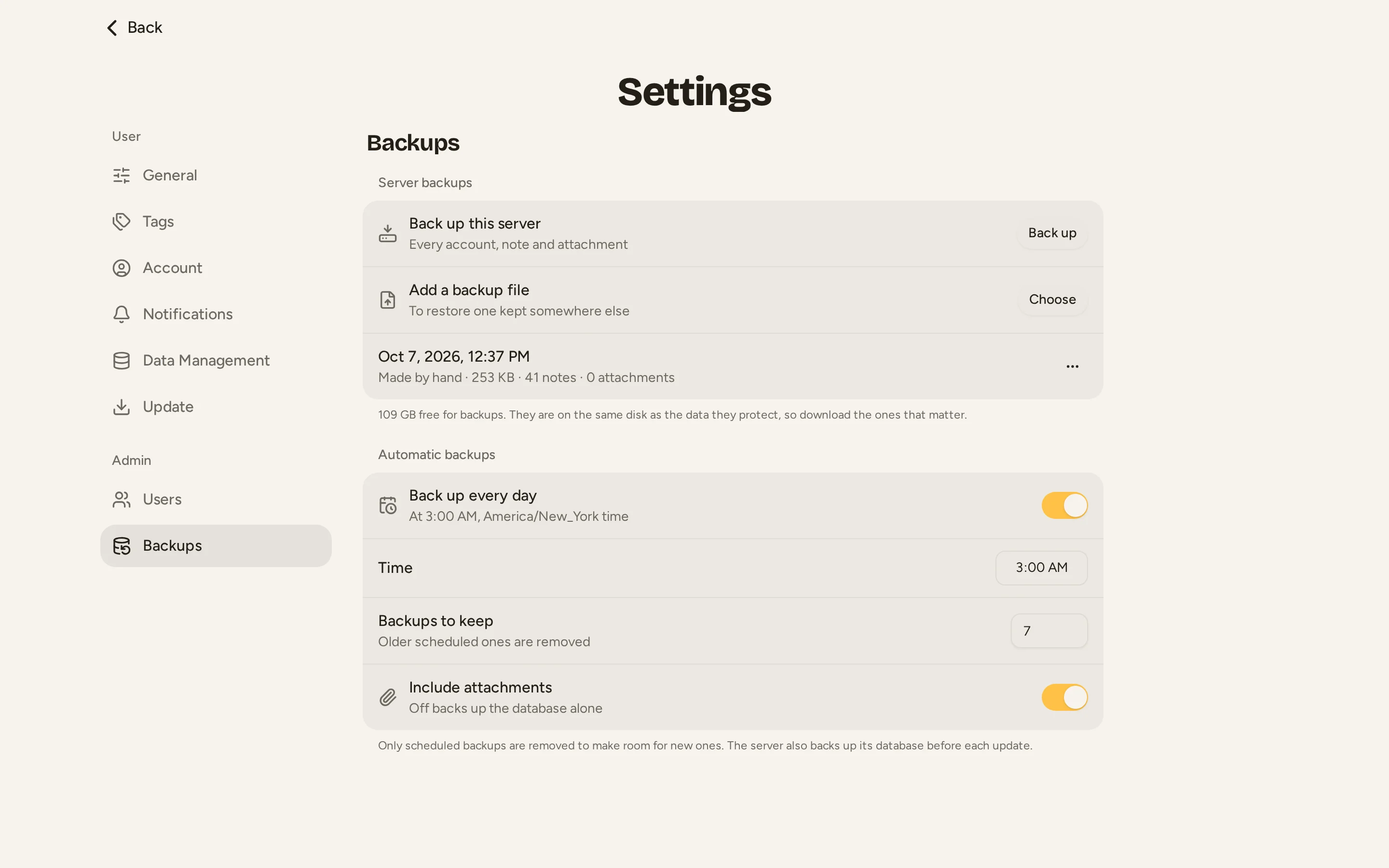
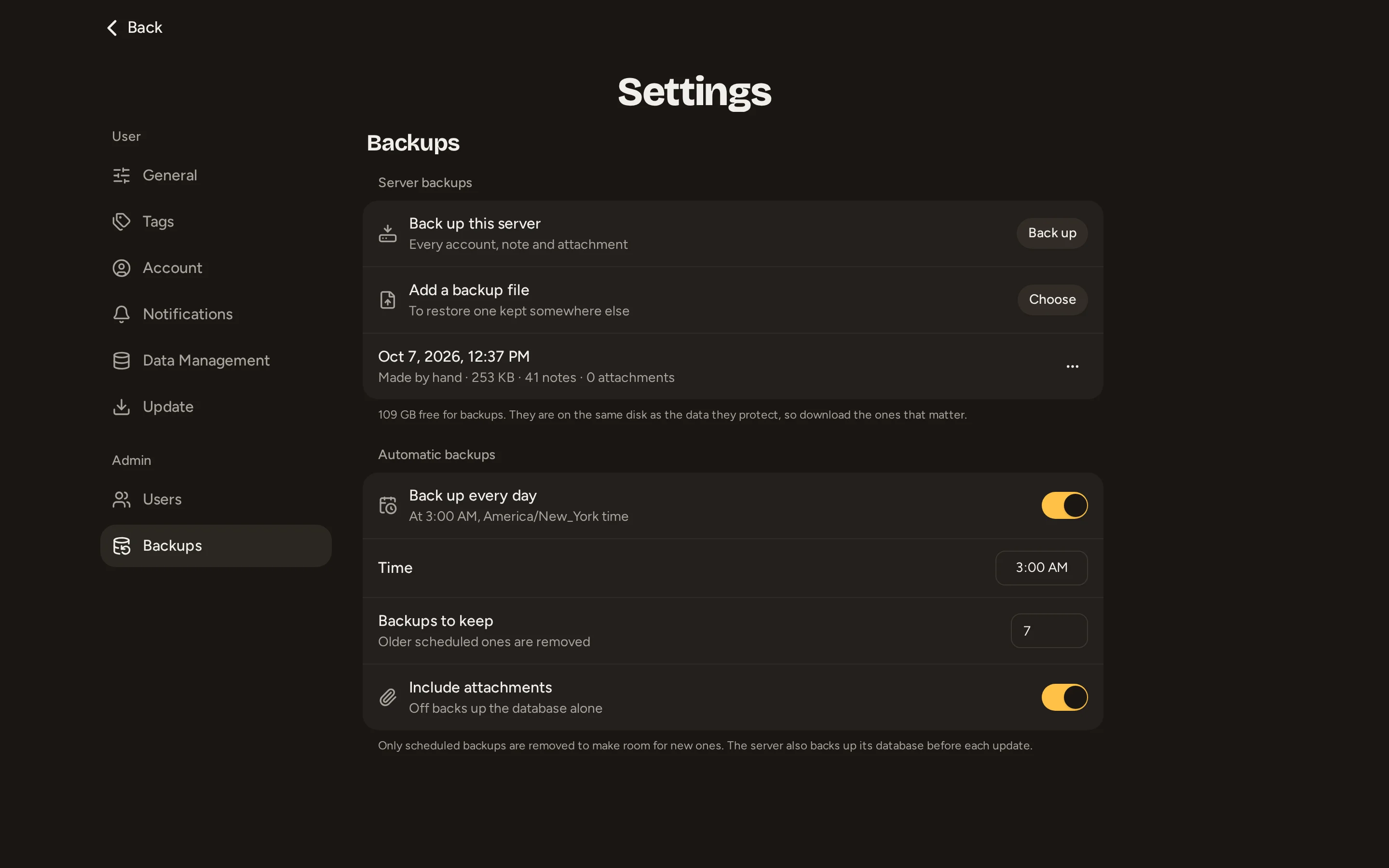
Open Settings > Admin > Backups, then select Back up in Back up this server. It makes a full backup while Catch keeps running. You can leave the page while it runs.
Each completed backup has Download, Restore and Delete in its menu. Add a backup file uploads one kept elsewhere and checks its manifest/checksums before listing it. Download or export important backups before relying on the server disk to retain them.
Under Automatic backups, enable Back up every day, choose Time, set Backups to keep and choose whether to Include attachments. The time is stored with a time zone; verify the zone shown beside the schedule. Retention accepts 1–365 scheduled backups and defaults to 7. Attachment inclusion defaults to on. The initial schedule is disabled, with 03:00 UTC as its time. A server off at the scheduled time catches up when it starts again.
Understand backup kinds
| Kind | Created by | Retention |
|---|---|---|
manual | App or host backup command | Until deleted or explicitly pruned. |
scheduled | Daily schedule | Count in Admin settings, default 7. |
update | Update helper or pre-migration startup | Startup retention uses UPDATE_BACKUPS_KEPT, default 10. Database only. |
pre-restore | Before replacing existing data | Latest 3. Database only. |
upload | Importing a backup ZIP | Until deleted or explicitly pruned. |
Kinds are pruned independently. A scheduled backup does not push out a manual one. The host update helper creates update backups, but repeated helper runs that the startup process treats as already backed up do not by themselves enforce the retention count; inspect the list and prune that kind explicitly if needed.
Use the host helper
With backup.sh beside compose.yaml, from that directory:
./backup.sh create
./backup.sh create --no-attachments
./backup.sh list
Use the actual name returned by list in the following examples:
./backup.sh inspect BACKUP_NAME.zip
./backup.sh export BACKUP_NAME.zip ./offsite-copy.zip
./backup.sh import ./offsite-copy.zip
./backup.sh prune --kind manual --keep 5
inspect checks the contents against the manifest. export copies a completed ZIP from the volume to the host and refuses to overwrite an existing target. import adds and validates an existing ZIP. Prune deliberately removes older backups of that kind; it is not a transfer off the server.
Store backups independently
The default backup_data volume is normally on the same disk as your database and attachments. It can protect against an update mistake, but not loss of that disk. The admin page reports whether backups share the data disk or lack a persistent mount.
To bind a directory on another mounted disk, prepare it for the container's UID 1000 and set, for example:
CATCH_BACKUPS_MOUNT=/mnt/backups/catchThen recreate the app. Changing the mount does not move backups already in the old volume; export or copy them deliberately. Make sure the disk is actually mounted before starting Catch.
For off-server copies, schedule full backups and sync completed ZIPs from that directory with your existing backup tool. Skip .tmp/, where in-progress files are written. Finished files do not change. Keep several recovery points and monitor free space: attachments are stored uncompressed, so each full backup is roughly its originals plus a database dump.
Test recovery
A checksum check finds damage but does not prove your entire recovery setup works. Restore a full backup on an isolated test installation at the same or a newer Catch version, using separate volumes and restricted access. Restored browser-push subscriptions are real: keep outbound notification delivery isolated during the drill.
Verify an account, note text, tags and an original attachment. Keep a record of the tested version, credentials and restore steps. Restore and recovery explains the operational effects. Deeper backup design remains in ADR 0012.